
CONTENT
Integrations in general
What to check first if an integration suddenly stops working?
If the integration in use suddenly stops working, the most common reason for this is found in the api identifiers. In Netvisor, api identifiers are tied to a specific user and through the user to the companies they have access rights to.
If the user who created the api identifiers is removed from the company's environment, the integration using their identifiers will also stop working.
In such a situation, another user must create new api identifiers in Netvisor and forward them to the integrated system. Creating new api identifiers can be done through the company menu under Api identifiers -> Create new api identifier

Once the identifiers are updated, the integration will continue to function normally.
Defining integration rights per integration
During the integration implementation phase, in addition to creating api identifiers, it is also important to allow the api resources required by the integration. In practice, this means granting the integration permission to perform certain actions in the company's Netvisor environment, such as creating new customers, importing sales invoices, or retrieving voucher information. These rights can be managed in Netvisor per integration, and for each integration also per resource or action.
The required api resources depend on the integration, and a list of the api resources needed by the integration can be obtained from the integration developer. Allowing api resources can be done in Netvisor from the page Company menu -> Api resource access rights. To edit api resource access rights, either user administrator, accounting office administrator, or company administrator rights are required.
In Netvisor, it is possible to allow api resources generally, allowing all integrations to use the allowed resource. However, it is recommended to allow api resources for each integration separately. Allowing api resources per integration is a good option for security reasons, and it also enables better management and visibility into which integrations have access to the company's environment.
Allowing integration-specific rights can be done for integrations found in Netvisor's Marketplace by searching for the correct integration by name under Ready integrations. If it is a custom integration for the customer or not found in the Marketplace, you will receive an access key from the integration developer, which you can use to search for the correct integration under Custom integrations.

If the customer has not allowed the resource used by the integration, Netvisor will return an error message during data transfer: SERVICE_ACCESS_ERROR :: Service error. The company has blocked access to the api resource: X. This can be resolved by allowing the resource mentioned in the error message for the integration.
Where can I find a suitable integration?
Netvisor offers ready-made integrations for numerous different software, which can be easily and quickly implemented. Ready-made integrations can be searched on our updated Marketplace website by software name or by browsing available integrations by category or industry.
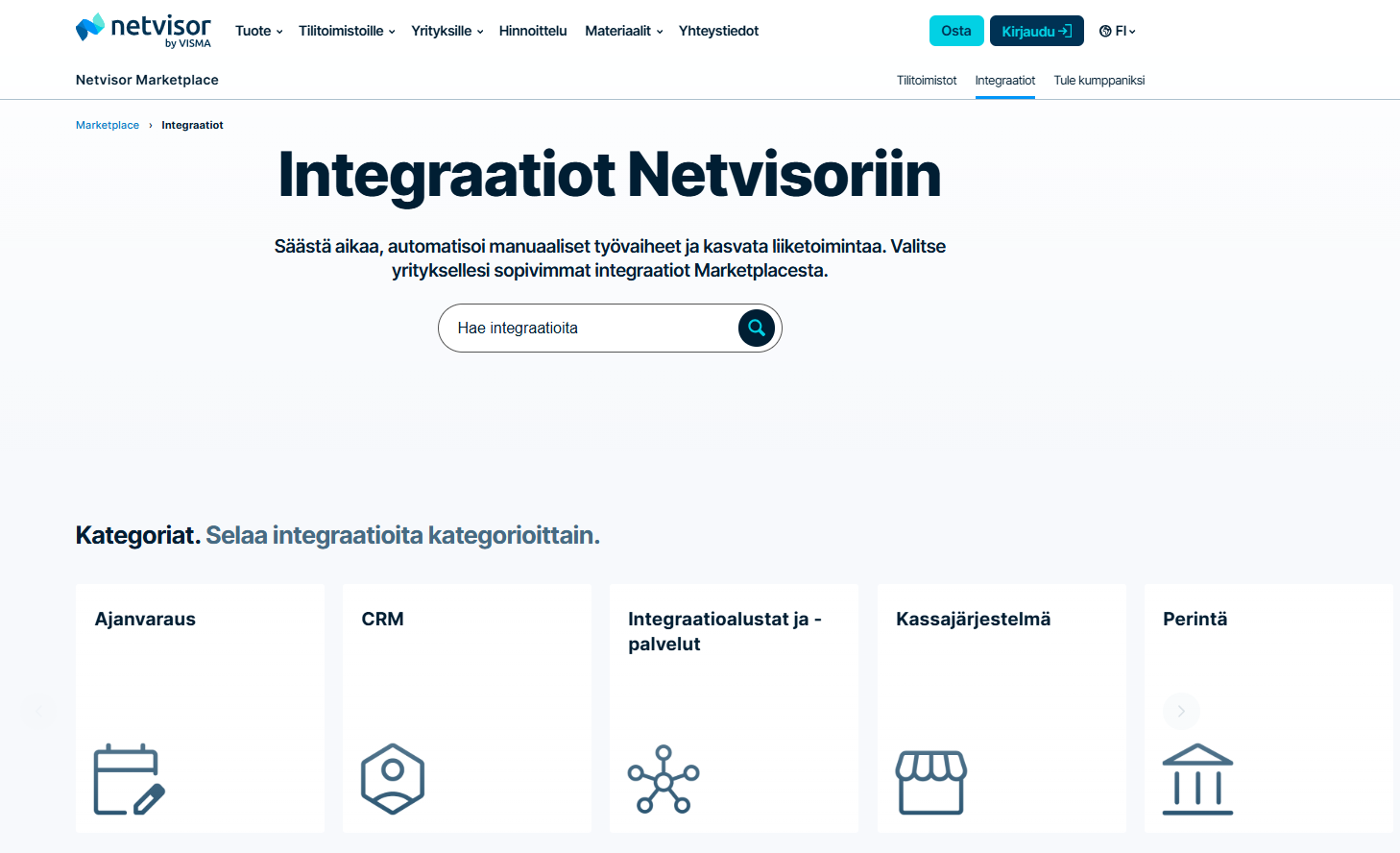
If a suitable integration is found, a contact request can be easily left to the software partner directly through the Marketplace. Software partners are happy to provide more information about integrations and guide you further in the implementation.
If a suitable integration is not immediately found or you want to discuss options, software recommendations for specific use cases can always be asked at [email protected]
Sales invoices and transactions
Handling different invoice number series in Netvisor and integration-created invoices
When transferring a sales invoice via integration from another system to Netvisor, depending on the use case, either Netvisor's or another program's invoice number can be used.
If another program defines the invoice number and sales invoices are also created in Netvisor, note that an invoice created in Netvisor will always automatically receive the largest available invoice number. If the invoice number is already used in Netvisor, the same invoice number cannot be imported via api, and the import will result in an error.
To avoid the error, proceed as follows:
When creating an invoice in Netvisor, edit its invoice number to a significantly larger number, so that the next invoice created in Netvisor will receive one larger number.
For example:
Another program gives the invoice number 100, which is transferred to Netvisor.
When creating an invoice in Netvisor, change the number of the created unsent invoice to 1000000. Thus, the next invoice created in Netvisor will automatically receive the number 1000001.

This way, invoice numbers 100-999999 are left for the other program's use.
Another option is to use Netvisor's trade names, but this requires changes to the integration's operation (see the section Utilizing a trade name on a sales invoice imported via api in the instructions. The above method is a convenient way, so changes to the integration's operation are not necessary.
Utilizing a trade name on a sales invoice imported via api
Sometimes it may be necessary to display a different name, address details, logo, invoice number series, and/or different bank account on certain customers' invoices than what would be in the so-called main trade name information. A trade name can be created in Netvisor for this purpose.
Netvisor's sales invoice api also allows the use of trade name information on sales invoices and orders imported via api. The trade name must be created in Netvisor so that the allocation to the trade name can be done via api. The allocation can be done either by the trade name's name or Netvisorkey.
The trade name's Netvisorkey can be found in the browser's address bar when on the trade name card, and the trade name's name can be found in the trade name information. These details cannot be retrieved directly via api, so they must be checked through the user interface.

For existing integration implementations, please ensure with the integration developer whether the integration implementation supports the use of trade names.
Why does the sales invoice have different information than the customer card?
When a sales invoice is imported via api, in many cases the customer's billing and delivery information is imported with the sales invoice material, which is visible on the sales invoice. If so, the invoice does not use other information from Netvisor's customer card except for the business id and e-invoice/email invoice address. In this case, the information displayed on the invoice may differ from the information on Netvisor's customer card if the customer details have not been updated between Netvisor and the other system.
You can update the information on Netvisor's customer card to the invoice during the invoice sending process. The sending process shows an orange triangle if the information on the invoice differs from the customer card information or if there are other deficiencies on the invoice, for example, for sending an e-invoice. To update the information on the invoice, click on the orange triangle and then 'Update invoice address information from customer card':

This function updates the customer details for the specific invoice. To avoid this manual action in the future, ensure with the integration maintainer why the customer details have not been updated to Netvisor's customer card.
If the sales invoice is allocated to the wrong customer card, it is because the integration used another customer's allocation information. For this, check the following:
1. The sales invoice is allocated to Netvisor's customer card either by customer code, NetvisorKey, or business id. If the allocation is done by customer code, ensure that the same customer code is used in both Netvisor and the other system. If necessary, you can confirm the allocation method with the integration maintainer or Netvisor's customer service.
2. If the sales invoice status is unsent, you can change the customer to the correct one from the sales invoice:

Ensure afterwards with the integration maintainer that the correct allocation information is used for the customer's sales invoice transfer in the future.
3. If the invoice already has a voucher and its status is other than unsent (e.g., open), a credit note must be created in the other system, transferred to Netvisor, and then the customer's allocation information must be changed to the correct one. To ensure the correct allocation information for the customer, contact the integration maintainer. After this, you can create the invoice for the customer again and transfer it to Netvisor.
How is the sales account determined for a sales invoice imported via api
For a sales invoice imported via api, Netvisor's products are always used, just like on the user interface side. The sales account is primarily determined from the settings of the products used on the sales invoice:

The api allows for a posting suggestion to be given for the product rows on the sales invoice. If this is provided, the sales account is not read from the product's settings. You can see the posting suggestion on Netvisor's sales invoice:

If you do not know which method the integration uses, you should inquire with the integration developer.
Determining the sales receivables account for a sales invoice imported via api
In Netvisor, the sales receivables account for the sales invoice voucher is determined based on the default account specified in the accounting settings, which can be found under Financial management > Accounting settings > Accounts used in default postings. Only one sales receivables account can be specified in this setting, which is used in all sales invoice vouchers, and by default, it is account 1701.

When sales invoices are imported via integration to Netvisor, it is possible to override this default account using the element overridevouchersalesreceivablesaccountnumber. This allows for specifying an accounting account different from the default, which overrides the default sales receivables account. It is important to note that this only works when invoices are imported to Netvisor with Open status. For invoices with Unsent status, the sales receivables account will be Netvisor's default sales receivables account regardless of how the information is imported via api.
For factoring invoices, the sales receivables account is determined based on the factoring account settings, so the method is different for them.
If invoices are imported with open status via integration and there is a need to specify the sales receivables account as a different account than Netvisor's default account, it is advisable to inquire about this possibility with the integration developer.
Crediting an imported invoice when the invoice rows do not match the invoice total
This guide explains how to credit a sales invoice imported via api when the total amount imported via api does not match the sum calculated from the invoice rows.

The primary method is to import a credit note for the invoice via api. The credit note should be imported in the same incorrect way, meaning that the total amount and row sum differ from each other. If the integration does not allow this, the following instructions will help. If importing a credit note via api is not possible, you can proceed in one of the following ways:
Option 1: Create a credit note from Sales invoice actions > Create credit note. When a credit note is created in Netvisor, the credit note amount is formed based on the invoice rows of the debit invoice. You can add one correction row to the credit note (for example, use a temporary product and as a description "correction row"), which will make the credit note amount match the debit invoice amount. In this case, the amount in the accounts receivable for the debit invoice is 100€, so correct the credit note amount to also be 100€.
Credit note invoice rows:

Allocate the credit note to the debit invoice. Check the accounting vouchers for the credit and debit invoices and correct them to match each other; the vouchers should be mirror images.
Option 2: Copy the debit invoice (Sales invoice actions - Copy invoice). When the invoice is copied, the copy will have a sum based on the invoice rows. The original debit invoice should be deleted in this case, and the related accounting voucher should be invalidated. This method is not recommended if the original invoice has already been sent to the customer.
Sales transactions arriving via api
Netvisor's api also allows for the import of sales transactions via api. Transactions imported via api can be allocated to sales invoices either by invoice database ID, reference number, or sales invoice number.
Depending on the integration implementation, the import of transactions uses either a payment method created in Netvisor or alternatively the bank account number found in the company's basic settings in Netvisor. The imported transaction is directed to the payment method using the payment method name or, when using the account number, with the IBAN-formatted account number. These details cannot be retrieved or managed via api, meaning they are always defined through Netvisor's user interface and must be established before importing the transaction.

A voucher is automatically created for the transaction imported via api. If the integration does not specify accounting accounts when importing transaction information, the debit entry on the transaction voucher will be based on the accounting account specified in the payment method or bank account settings, and the receivables account will use Netvisor's default receivables account. The default receivables account can be modified under Financial management > Accounting settings > Accounts used in default postings, and by default, it is 1701.
The accounting accounts on the voucher can, however, be provided via api if necessary, in which case Netvisor's default accounts are not used - please ensure the implementation method with the integration developer.
Allocating partial payments to a sales invoice imported via api
When sales invoices are imported from another software to Netvisor, it is good to discuss and ensure with the integration builder how the allocation of partial payments to invoices should work. By default, partial payments do not automatically allocate to sales invoices imported via api unless the sales invoice message imported via api has addressed the allocation of partial payments.
If partial payments are desired to automatically allocate to sales invoices imported from another software to Netvisor, the sales invoice message must provide a value of 1 in the expectpartialpayments field. More detailed documentation can be found at this link

It is important to note that although the Netvisor user interface allows for setting the acceptance of partial payments, this only applies to invoices created through the user interface, not invoices imported via api. If partial payments are not allowed, and the sales transaction imported does not match the invoice amount exactly, the transaction will remain in unallocated reference transactions and must be manually allocated.
Purchase invoices
Handling purchase invoices via api
Netvisor's api allows for handling purchase invoices via api as well. From another software, actions such as approval, factual verification, or posting can be done via api for a purchase invoice in Netvisor. Actions done via api will appear in the purchase invoice's processing history in the same way as actions done through Netvisor's user interface:

In handling purchase invoices via api, two key points should be noted:
Api user's access rights: The api user, i.e., the user whose api identifiers are used by the integration, must have sufficient rights for the actions performed via the integration. If a purchase invoice is to be factually verified, approved, or posted via api, or if the posting rows of the purchase invoice are to be edited, the api user should have the necessary rights set in Netvisor.
Approval workflow: Factual verifications or approvals done via api are performed in the name of the user whose api identifiers are used in the integration. If an approval workflow is set for the purchase invoice and the workflow settings require verification or approval by a specific person, the integration must also use the api identifiers created by the person specified in the workflow for the action to succeed via api.
Payroll
Rule of thumb for payroll integrations
In the implementation of a new payroll integration, it can be unclear when to number record types and when to number salary types. Here is a good rule of thumb:
If the integration transfers working hours to Netvisor, number the record types to match the other system.

If the integration also allows for the transfer of pay period-specific record types, number Netvisor's quantity salary types for these.

If the integration imports payslips, number Netvisor's salary types to match the other system.
Where can I find the material imported by the payroll integration?
When implementing a payroll integration, it is important to know where the data imported via api arrives in Netvisor. This depends on which phase of payroll the data is imported to, i.e., which api resource the integration uses. Below are illustrated the most typical options. More detailed information on the api resources used by a specific integration can be obtained from the software partner who built the integration.
Importing working hours and pay period-specific record rows
Api resources: workday.nv, payrollperiodcollector.nv
Location in Netvisor: Working hours entry view. Possible pay period-specific record rows also arrive in the same view if the integration allows for their import.

Additional information: Imported hours and pay period-specific record rows automatically rise to payroll when a payslip is created for the employee.
Importing payslip
Api resource: payrollpaycheckbatch.nv
Location in Netvisor: Payroll -> Payslips and pay periods

Importing payroll payment material
Api resource: payrollexternalsalarypayment.nv
Location in Netvisor: Payroll -> Payroll -> Pay salaries -> External payments

Additional information: When importing payroll payment material, remittances requiring a reference number may also be imported, which appear in Purchases -> Open and paid transfers section, and a ready voucher arrives in Netvisor's voucher listing under Financial management -> Voucher listing.
This article has been translated using an AI-based translation tool. The contents or wording of these instructions may differ from those in other instructions or in the software.