This guide covers the management of working hours rows, including adding, editing, deleting, and saving rows. The guide also advises how to automatically pre-fill weekly hours and how to record public holidays.
CONTENTS
- Adding, deleting, editing, and saving a new row
- Pre-fill weekly hours
- Public holidays
- Frequently asked questions
Adding, deleting, editing, and saving a new row
Payroll > Working hours entry
- Add a new row by pressing the green plus sign (+) at the end of the daily entry row.
- Delete a row by pressing the red cross. Note that already paid working hours cannot be deleted.
- Edit an open row by selecting the pen/notepad icon. The payroll accountant can edit all unpaid rows that are in the status open, confirmed, or approved. Editing a confirmed row returns its status to open.
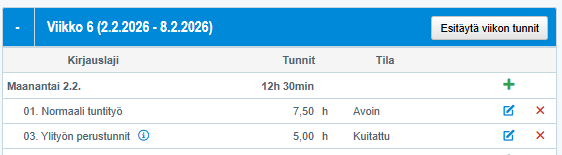
If it is not possible to add or edit a working hours row and the necessary icons are missing, check if the working hours entry lock is on for the pay period in the payroll settings.
Payroll > Settings > Payroll settings > Settings > Lock only working hours entry or Lock payroll and working hours entry

- Save additions, edits, and pay period-specific changes to working hours rows by pressing the "Save" button that appears at the bottom of the page before changing the date, week, or month.

Pre-fill weekly hours
Payroll > Working hours entry
- Add missing rows for the entire week at once by selecting the "Pre-fill weekly hours" button at the top right of the weekly table.
- Note that the program offers by default the daily working hours calculated from the five working days weekly working hours selected in the salary model settings or the regular weekly hours defined in the employee's employment details.
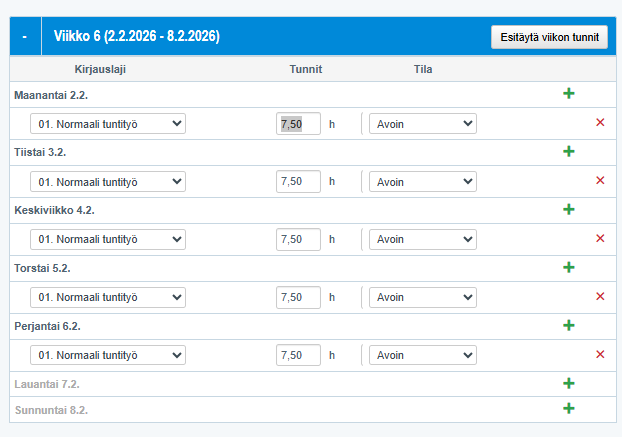
The function utilizes the default weekly working hours from the salary model settings (e.g., 37.5 h) and automatically creates a row for each weekday with the full day's hours (e.g., 7.5 h). The function is only available if working hours are entered in hours.
Check the default weekly working hours:
Payroll > Payroll > Salary model management > Salary model name > Edit > Working hours entry tab

Ensure that the record type settings have "Affects working hours" selected if it is a time entry that affects the employee's regular total working hours.
Payroll > Settings > Payroll settings > Record types

Public holidays
Payroll > Working hours entry
- Note that there are no automatic settings for public holidays in the program. The program does not recognize that hours worked on public holidays should be transferred directly to flexitime without overtime payment.
- Record hours worked on a public holiday for one day by adding two time entries. See detailed instructions: Correcting flexitime balance on a public holiday.
- Alternatively, save hours worked on public holidays on a non-red day and write in the specification which day the hours belong to.

Frequently asked questions
Why can't I delete a working hours row?
Already paid working hours cannot be deleted from the system.
Why don't I see buttons to add or edit a new row?
Check the payroll settings to see if the working hours entry is locked for the period in question.
Can I add an attachment directly to the working hours entry?
No, the option has been removed. The recommended way is to submit attachments via Netbox.
How do I pre-fill weekly hours?
Use the "Pre-fill weekly hours" button in the working hours entry view. Ensure that the default weekly working hours are set correctly in the salary model settings.
How are public holiday hours handled in terms of flexitime?
The program does not automatically transfer them to flexitime. Hours must be recorded separately or a specification added to ensure they are allocated correctly.
Keywords: Working hours entry, pre-fill weekly hours, public holidays, attachments, saving, editing, payroll settings, record types
Did you find it helpful? Yes No
Send feedback