This help article discusses how to assign a cost object to salary types for tax-exempt allowances for expenses in Netvisor's travel expense reports and accounts of expenses. The article also describes how to set expense allowances according to the collective agreement to follow the allocation curve on the payslip.
CONTENT
- Cost objects for tax-exempt allowances for expenses
- Setting cost objects on travel expense report
- Notes on "Tax-exempt allowances for expenses" group
- Handling and allocation curve for expense allowances according to collective agreement
- Frequently asked questions
Cost objects for tax-exempt allowances for expenses
Note that you can get a cost object for salary types in the "Tax-exempt allowances for expenses" salary type group only if you handle travel expense reports and expense allowances in Netvisor's travel expense reports and accounts of expenses.
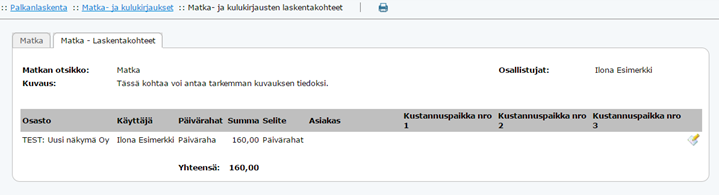
Setting cost objects on travel expense report
You can set cost objects on the travel expense report by selecting Payroll > Travel and accounts of expenses > select travel expense report.
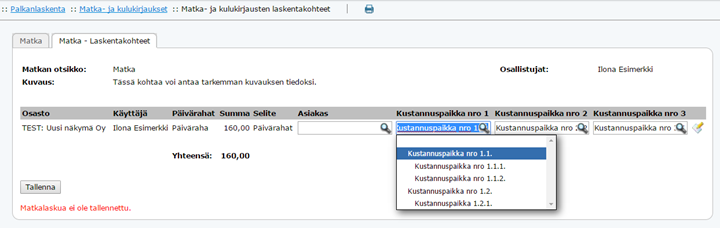
- Set the cost objects for travel and expense rows from the second tab of the travel expense report view. If default cost objects have been set behind the employee, the information will be defaulted to the expense row created for the employee.
- Edit the row's cost objects from the edit icon at the end of the row, which opens the row in edit mode.
- Save changes from the save button that appears at the bottom of the page.
Notes on "Tax-exempt allowances for expenses" group
When the salary type group is "Tax-exempt allowances for expenses" and you assign a cost object to the salary type in the Travel section on the travel expense report row, the information "According to allocation curve" will appear on this row in payroll on the "payroll accountant's view" tab. Note that based solely on this, an actual allocation curve is not formed, but the cost object will appear on the accounting voucher.
Handling and allocation curve for expense allowances according to collective agreement
You can edit the salary type settings by selecting Payroll > Payroll > Salary model management > Company-specific salary types > select salary type.
- If the company pays expense allowances according to the collective agreement (e.g., tool allowance) and you want to handle these on the employee's payslip and the allowances need to follow the allocation curve on the payslip, change the salary type settings to the salary type group, for example, "Salaries and allowances".
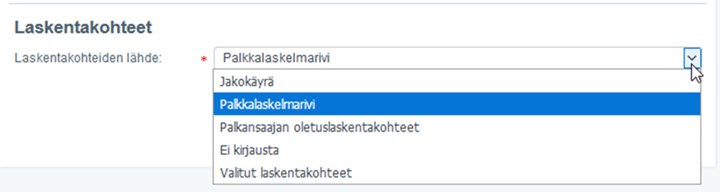
- After this, you can select the source of the cost object in the company-specific salary types.
Frequently asked questions
How do I get a cost object for tax-exempt allowances for expenses on the payslip?
Handle travel expense reports and expense allowances in Netvisor's travel expense reports and accounts of expenses. You can set cost objects on the second tab of the travel expense report view on a row-by-row basis.
Do the salary types in the "Tax-exempt allowances for expenses" group follow the allocation curve?
No, they do not. Even though the information "According to allocation curve" may appear on the payslip, an actual allocation curve is not formed. However, the cost object will appear on the accounting voucher.
How do I get the tool allowance according to the collective agreement to follow the allocation curve?
Change the salary type group to "Salaries and allowances". After this, you can select the source of the cost object in the company-specific salary types.
Keywords
Tax-exempt allowances for expenses, cost object, travel expense report, accounts of expenses, allocation curve, collective agreement, tool allowance, payroll, payroll accountant's view, salary type group
Did you find it helpful? Yes No
Send feedback