This guide covers the VAT reporting process in Netvisor step by step.
1. Ledgers, bank statements
You can check the information needed for the VAT period by selecting, for example, Sales > Sales invoices, Purchase > Purchase invoices, Bank > Bank statements and Bookkeeping > Vouchers > Voucher browsing.
-
Before you make a VAT entry, check the following:
- Make sure that all sales invoices for the period have been sent or printed, i.e. they have vouchers. Make sure that the date of the sales invoices belongs to the period for which you are recording VAT.
- Make sure that all sales payments for the period have been handled.
- Make sure that all purchase invoices for the period have been handled.
- Make sure that all purchase payments for the period have been handled.
- Make sure that all bank statements for the period have been handled.
-
Check separating vouchers:
- Open Bookkeeping > Vouchers > Voucher browsing.
- Select the setting “show only separating vouchers”.
- Investigate and correct the separating vouchers.
-
Check the bookkeeping reconciliation view:
- Open Bookkeeping > Reports > Bookkeeping reconciliation (or the corresponding reconciliation view).
- Make sure there are no discrepancies in the view.
-
Make sure that all entries belonging to the period have been made:
- Do not make the VAT entry before you have checked that there are no entries belonging to the period left undone.
- If you later need to make entries for the period after the VAT entry, bypass the VAT lock.
- Correct the situation with the necessary entries.
- Cancel the VAT lock bypass.
- Record VAT again based on the corrected data.
2. Record value-added tax
You can open the VAT calculation by selecting Financial Management > Company obligations > VAT calculation.
- Open Financial Management - Company obligations - VAT calculation.
- Select year and period. If necessary, select the setting “Show account balance”.
-
Check and compare the following items (small rounding differences may occur, which is completely normal):
- Total taxes payable.
- Accounting VAT liability account balance for the target month.
- Total deductible taxes.
- Accounting VAT receivable account balance for the target month.
- When you are satisfied with the calculation, select the function “Record value-added tax and rounding difference”.
- Let the system transfer the VAT entries to the tax account.
3. Move to self-assessed taxes view
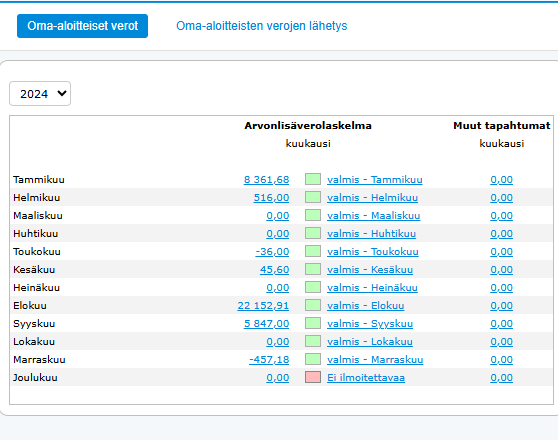
You can handle self-assessed taxes by selecting Financial Management > Company obligations > Self-assessed taxes.
- Open Financial Management - Company obligations - Self-assessed taxes.
- If necessary, add VAT reliefs for small businesses and create the notification.
-
Create tax account bank transfer:
- Check payment date.
- Select payment account.
- Check and, if necessary, correct the amount.
- Transfer the bank transfer to the payment view by pressing the respective button.
- Check that the tax account bank transfer is ready in the Purchase menu under Bank transfers.
4. Move to self-assessed taxes submission view
You can send the self-assessed taxes material by selecting Financial Management > Company obligations > Self-assessed taxes submission. Submission of material is possible as long as the company has a certificate in order.
- Open Financial Management - Company obligations - Self-assessed taxes submission.
- Tick the period tax return to be sent.
- Send the notification by pressing the “Send selected” button.
Note!
If sending is not successful, create a transfer file for the ilmoitin.fi service:
- Tick the desired notification.
- Press the “Process selected without sending” button.
- Select “Create and download ilmoitin.fi transfer file”.
- Save the transfer file to your desired folder on your hard drive.
- Send the transfer file manually via the ilmoitin.fi service.


-
When the submission has been done via the ilmoitin.fi service, mark the respective notification as sent:
- Tick the notification.
- Press the “Set selected as sent” button.
- Confirm the selection by pressing “Mark notifications as sent”.
- Note that the “Mark notifications as sent” button DOES NOT SEND ANY MATERIAL TO THE TAX AUTHORITIES, it only sets the notification status to “sent”.
Frequently asked questions
Question: What do I need to check before making the VAT entry?
Answer: Check that all sales and purchase invoices, payments and bank statements for the period have been handled, separating vouchers have been investigated and the bookkeeping reconciliation view shows no discrepancies.
Question: How do I record VAT in Netvisor?
Answer: Open Financial Management > Company obligations > VAT calculation, select year and period, compare the VAT calculation amounts with the balances of the VAT liability and VAT receivable accounts in bookkeeping, and select “Record value-added tax and rounding difference”.
Question: How do I create a tax account bank transfer from VAT?
Answer: Open Financial Management > Company obligations > Self-assessed taxes, add VAT reliefs for small businesses if necessary, create the notification and create the tax account bank transfer by checking the payment date, payment account and amount, and transferring the bank transfer to the payment view.
Question: How do I send the self-assessed taxes notification from Netvisor?
Answer: Open Financial Management > Company obligations > Self-assessed taxes submission, make sure the company has a valid certificate, tick the period tax return to be sent and press “Send selected”.
Question: What do I do if sending self-assessed taxes is not successful?
Answer: Create an ilmoitin.fi transfer file by selecting the notification, pressing “Process selected without sending” and “Create and download ilmoitin.fi transfer file”, save the file and send it manually via the ilmoitin.fi service. After this, mark the notification as sent in Netvisor.
Question: Does the “Mark notifications as sent” button send the material to the tax authorities?
Answer: No. The “Mark notifications as sent” button does not send any material to the tax authorities, it only sets the notification status to “sent”.
Keywords: VAT, value-added tax, VAT calculation, VAT entry, self-assessed taxes, period tax return, tax account bank transfer, ilmoitin.fi, certificate, Netvisor
Did you find it helpful? Yes No
Send feedback