On this help page, the creation of payroll reports, the use of search criteria, and saving shortcuts are discussed. The instructions explain how to report payroll transactions with different sorting options, how to generate a salary certificate, and what access rights are required for the reporting function.
CONTENT
- Generating report
- Report format
- Period
- Salary model
- Employee
- Salary type
- Cost objects
- Saving report shortcut
- Salary certificate
- Access rights
Through payroll reports, it is possible to report payroll transactions with various sorting and search criteria. By default, the first report that opens is the Salary type statistics report, which shows all payroll transactions totaled by salary type. The same information is displayed in different order on other tabs of the payroll reports. Payroll reports show all generated payroll transaction rows, regardless of their status, so it is possible to report transactions from payslips that are in progress. Payroll reports can also be used to generate a salary certificate.

Generating report
You can open the view or perform the function by selecting Pay > Reports > Payroll reports.
It is possible to provide many different search criteria for the report:

Report format
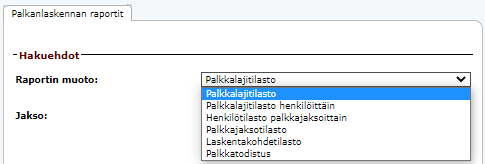
- Select from the Report format menu the format in which the data is presented.
- Note that the selection only affects which tab you are directed to in the report; all tabs are displayed after generating the report.
Options are:
- Salary type statistics
- Salary type statistics by person
- Person statistics by pay period
- Pay period statistics
- Cost object statistics
- Salary certificate
Period
- Period selection defines the date information based on which the data is retrieved.
- Data can be retrieved based on the date of the voucher, pay period end date, or salary payment date.
- From the dropdown menu, you can select a specific month or the entire financial period.
- The lower date restriction allows you to freely define the desired time period either by typing the desired date range or selecting the days from the calendar view.

Salary model
- Use the Salary model selection if you want to display only the information of a specific salary model.

Employee
- With the Employee selection, you can define the report to display only the information of a specific employee.
Salary type
- With the Salary type selection, you can choose the report to display only the information of a specific salary type.
- If you want to include salary types that do not have the "Displayed in reports" selection, choose "Show also non-reportable salary types".
- You can select multiple salary types from the search box by clicking the selection boxes to activate them.

Cost objects
- With the Cost objects selection, you can choose for which cost objects the data is reported.
- You can select multiple cost objects from the search box by holding down the Ctrl key while selecting the desired rows with the mouse pointer.
 Finally, click the "Show report" button.
The opened report shows all report formats on their own tabs. All five options (Salary type statistics, Salary type statistics by person, Person statistics by pay period, Pay period statistics, and Cost object statistics) are always available.

Saving report shortcut
You can save a shortcut from the desired report and use a ready-made report template where you only change the period.
- First fill in the report search criteria.
- Then click “Save shortcut” at the bottom.

After saving, the report template you created can be found on the “Shortcuts” tab of the payroll reports. From the view, you can open the desired report template or delete it by clicking the delete button.  When you open a shortcut, you can define the desired period from which the report is generated.

Payroll reports can also be saved for other users besides yourself. If the shortcut needs to be removed from other users, you must be the creator of the shortcut and have the following rights:
- P-role and sufficient payroll-specific rights
- User administrator (KH) rights
- Sales, products, purchases, and financial management-specific edit rights in:
- Basic reporting
- Basic accounting functions
- Accounting report search criteria
Salary certificate
The salary certificate prints information from three different periods:
- From the requested period
- The last 6 months from the end date of the search criteria
- Earnings for the calendar year according to the end date of the search criteria
All salary types used in payroll are printed on the salary certificate. The top of the salary certificate shows the same information as the employee's payslip PDF printout. The salary types visible on the salary certificate cannot be edited or hidden.
Access rights
Payroll reports function requires one of the following:
- Payroll accountant (P) role and edit rights in "reporting" from specific rights
or
- Supervisor (E) role, edit rights in "reporting" from specific rights and company hierarchy approval rights for employees whose information you want to review.

Shortcuts also follow these access rights.
Frequently asked questions
Question: Which payroll transactions are shown in payroll reports?
Answer: The reports show all generated payroll transaction rows regardless of their status, including transactions from payslips that are in progress.
Question: Can certain salary types be hidden from the salary certificate?
Answer: No. The salary certificate always prints all salary types used in payroll, and they cannot be edited or hidden.
Question: Where can I find saved shortcuts?
Answer: Saved report templates can be found on the “Shortcuts” tab of the payroll reports.
Keywords: payroll reports, salary type statistics, salary certificate, shortcuts, search criteria, reporting, access rights, cost objects
Did you find it helpful? Yes No
Send feedback