This guide explains how payment confirmation works in Netvisor and what steps it includes. If you want to ensure that one person cannot directly pay the company's purchase invoices, define a payment confirmation practice for the company. This means that you define how many people must confirm the payment before it can be sent to the bank. If necessary, you can also define a person who can pay the purchase invoice directly without the confirmation method.
Contents
Payment confirmation settings
You can open the view by selecting Sales and purchase ledger rights > Payment confirmation settings link.
To define the payment confirmation settings, you must have the Accounting office administrator (TPK) role or company administrator rights as well as user administrator KH rights.
Confirmation also affects payroll. For bank transfers, you define how many people must approve the bank transfer before it is sent for payment. If you define one approver for bank transfers, the transfer must first be approved by one person and then another person can send it for payment. More information can be found in the Bank transfer approval help article.
By default, payment confirmation and bank transfer approval are not in use.
In the image below, it is defined that two confirmations are required. The payment is sent from Netvisor to the bank only when another person has confirmed the invoice. The payer must authenticate strongly before payment by clicking the button "Authenticate and pay". In this case, strong authentication is used to verify the identity. After successful authentication, the material is sent to the bank for processing. Authentication is session-specific. If you make multiple payments during the same session in the same company, no new authentication is required. If a person has bypass rights, they must authenticate directly at the payment stage, and then the payment is sent to the bank.
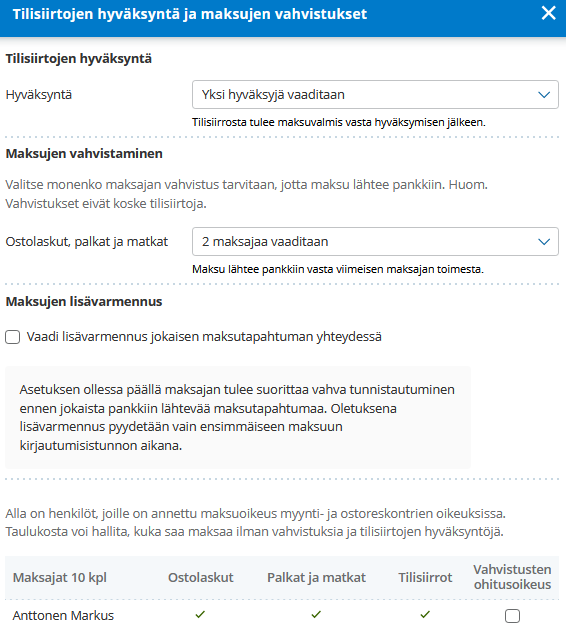
Require additional verification for each payment transaction: When the setting is enabled, the payer must perform strong authentication before each payment transaction sent to the bank. By default, additional verification is requested only for the first payment during the login session.
If this selection is not visible on the page, proceed as follows:
- Press the Ctrl + F5 keys simultaneously to refresh the page, after which the selection should appear.
- If you are using a Mac computer, press CMD + R keys.
Payment confirmation in practice
When payment confirmation is active, the number of confirmations is visible in open purchase invoices.
You can bring the Payment confirmations column into the Open purchase invoices view as follows:
- Open the Open purchase invoices view.
- Select Show columns.
- Select Invoice additional information > Payment confirmations.
- Press the update selections button.
The open purchase invoices now have a Payment confirmations column. By clicking the column, you can see the details and the account from which the payment was originally confirmed. The view also shows how many have confirmed and how many confirmations are needed for the payment.

In the Open purchase invoices view, there is a selection "Additionally show only" > Invoices that I can pay or confirm. This listing shows invoices that can be paid directly or for which a confirmation can be made.
When you take a purchase invoice to payment for the first confirmer, proceed as follows:
- Open the purchase invoice that will be taken to payment.
- Edit the payable amount if necessary.
- Edit the invoice due date if necessary.
- Select the bank account through which the invoice is paid, if the company has several bank accounts in use.
- Check in the Confirmations section how many people have confirmed the payment and how many confirmations are needed.

When the account is selected and the first payer presses the send payment data button, the data does not yet go to the bank.

When another person is taking the data for payment, they can no longer edit the payable amount of the invoice. However, they can change the payment date and the account from which the payment is made if they wish. In the Invoice confirmations section, you can see the details with which the payment was first confirmed.
When the second person completes the payment process, the data is sent from Netvisor to the bank and the bank processes this data on the payment due date. The last confirmer must authenticate again at the payment stage through bank credentials. Then the payment is sent to the bank. Strong authentication is not required for other payment confirmers.
If the purchase invoice has been put into the confirmation cycle in parts, take all parts through the confirmation cycle. After that, you can pay or confirm the remaining part of the invoice using the payment confirmation feature. If the purchase invoice has been paid in several installments, the Payment confirmation section first shows the number of confirmations and at the end the total number needed for confirmation for that invoice.
If the payment encounters an error between Netvisor and the bank, the error message is only sent to the person who confirmed the payment last, i.e., who sent the material from the program to the bank. Payment confirmation does not work with the Netvisor mobile app. In this case, you must use the regular Netvisor to use payment confirmation.
Cancellation of confirmation
If you notice at the payment stage that the payable amount is incorrect or corrections need to be made to the invoice and one person has already confirmed the payment, proceed as follows:
- Open the purchase invoice for which you want to remove the payment confirmation.
- Select Purchase invoice actions > Return to unprocessed.
- Let the invoice return to the new invoice status.
- Perform factual verification/approval and posting again for the invoice.
- Make the payment again with the correct information.
If the confirmation has been turned off and there have been invoices in process in the company that have been partially confirmed, proceed as follows:
- Turn payment confirmation back on.
- Return to unprocessed those invoices that were partially confirmed.
- Turn off payment confirmation.
- Pay the invoice normally by strongly authenticating.
Frequently asked questions
Question: How do I enable payment confirmation settings in Netvisor?
Answer: Open Sales and purchase ledger rights > Payment confirmation settings link. Make sure that you have the Accounting office administrator (TPK) role or company administrator rights as well as user administrator KH rights, and then define the required number of confirmers and other settings.
Question: When is the payment sent from Netvisor to the bank?
Answer: The payment is sent from Netvisor to the bank only when all required confirmers have confirmed the payment and the last confirmer has authenticated at the payment stage through bank credentials.
Question: How do I proceed if a payment confirmation needs to be cancelled?
Answer: Return the purchase invoice to unprocessed by selecting Purchase invoice actions > Return to unprocessed. The invoice returns to the new invoice status, requiring factual verification/approval and posting to be done again, after which you can make the payment again with the correct information.
Question: Why do I not see the "Require additional verification for each payment transaction" selection?
Answer: Refresh the page by pressing Ctrl + F5 (Windows) or CMD + R (Mac). After this, the selection should appear.
Question: Can I use payment confirmation with the Netvisor mobile app?
Answer: You cannot. Payment confirmation does not work with the Netvisor mobile app, so you must use the regular Netvisor.
Keywords: payment confirmation, confirmation, payment, purchase invoices, payments
Did you find it helpful? Yes No
Send feedback