This help covers the management of posting rules. Open the posting rules management view by selecting Financial management > Accounting settings > Posting rules.
You can create a rule based on the posting of bank statements, according to which a posting proposal is automatically created for similar transactions. The posting rule can be displayed on the bank statement and in the Sales payment list, where you can post transactions using the rule.
Before creating a posting rule, make sure that you have at least editing rights for the bank statement and basic accounting functions.

Posting rule management functions
- Add a new posting rule: Create a new rule by selecting the Add a new posting rule link at the top of the page.
- Edit: Edit an existing rule by selecting the xx link in the Edit column. In the edit view you use the same information and fields as when creating a new rule.
- Delete: Delete a rule by selecting the xx link in the Delete column.
Posting rule details and fields
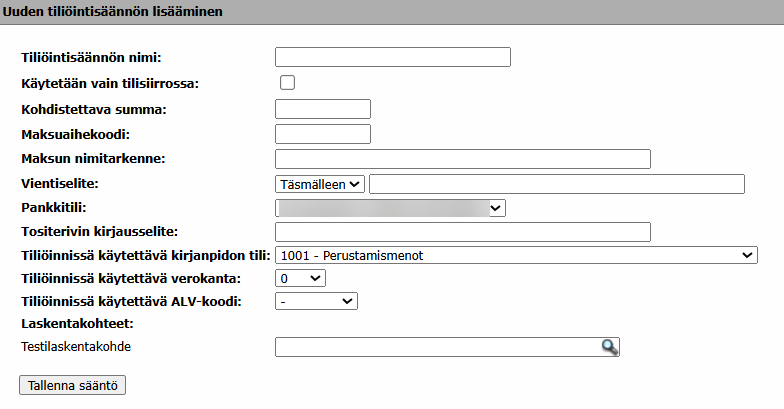
- Posting rule name: Name the rule so that you can directly see from the name which transactions the rule is intended to post.
- Used only in bank transfers: Select this when you want to create a posting rule that you use for bank transfers, but still handle the transaction manually from the bank statement with this rule.
-
Targeted amount:
- Use this field as the first of three targets.
- Enter an amount here if the same euro amount is repeatedly shown on the bank statement (for example 1234.56 euros).
- Do not use this target if the transaction amounts vary.
-
Payment subject code:
- Use this field as the second target.
- Use this when you want a very reliable targeting.
- Note that on a machine-readable bank statement each row has its own transaction code, i.e. payment subject code.
- Be aware that, for example, bank service fees always appear on the bank statement with a specific code that other transactions do not use. Bank transfers also have their own code.
- Display the transaction code as follows:
- Open the bank statement edit view.
- Select the "Fetch posting rules" link, even if you do not yet have any rules.
- Check that after clicking the link the system shows the payment subject code for each row.
- Copy the code and use it in the posting rule if necessary.
- When you create a posting rule for bank service fees:
- Note that there are both taxable and non-taxable service fees.
- Create the rule based on which type of transactions is more common on the bank statement.
- Handle exceptional transactions manually with the Post tool.
- Use the posting rule for the remaining transactions.
-
Payment name specification:
- Use this field as the third target.
- Enter the name specification in exactly the same case as on the bank statement (the field is case-sensitive).
- For example, make sure that "RENT" on the bank statement is in uppercase in the name specification. The forms "Rent" or "rent" will not work for targeting.
- Use this, for example, in posting payroll transactions when the employee name is used as a target (if the HRM section is not in use and payroll is calculated in another program).
Voucher posting specification: The posting rule field "voucher posting specification" allows the restriction "exactly" or "contains". The "exactly" restriction targets the specification/text field under the transaction title. The "contains" restriction picks up all transactions that contain the specified word or text.
- Bank account: Make sure that the bank account matches if you use the rule via the bank statement. The rule will only be selectable if the bank account is the same as on the bank statement.
-
Voucher row posting specification:
- Enter the desired posting specification here.
- Note that when you process transactions via the bank statement, this specification will appear in the voucher row specification field.
- Be aware that the row specification will contain this specification followed by a dash and the bank statement transaction rows.
- See the example below of a bank statement where a 150 euro transaction has been processed with a posting rule where the posting specification is "Desired posting specification".

The voucher will appear as follows:
If the posting rule is used in the Sales and payment section and you have entered a posting specification here, the row specification will be based on what you have entered in the posting specification field. This overrides the posting rule's posting specification. In the Sales and payment view you cannot use an empty posting specification.

Cost objects: With the posting rule, you can choose whether the rule creates a cost object for the generated voucher. Make sure that cost objects have been created in cost object management so that they are visible.
Frequently asked questions
Question: Where can I find the posting rules management view in Netvisor?
Answer: Open the view by selecting Financial management > Accounting settings > Posting rules.
Question: What rights do I need to create a posting rule?
Answer: You must have at least editing rights for the bank statement and basic accounting functions.
Question: How do I create a new posting rule?
Answer: In the posting rules management view, select the Add a new posting rule link at the top of the page and fill in the rule details and fields.
Question: How do I find the payment subject code for a posting rule?
Answer: Open the bank statement edit view, select "Fetch posting rules" and copy the payment subject code for each row that the system displays after clicking the link.
Question: Why is the "Payment name specification" not targeting correctly?
Answer: Check that the name specification is in exactly the same case as on the bank statement, because the field is case-sensitive.
Question: How does the posting rule's posting specification affect the row specification created on the voucher?
Answer: When processing via the bank statement, the posting specification is entered in the voucher row specification field, followed by the bank statement transaction rows. In the Sales and payment view, the row specification is formed based on what is entered in the posting specification field, and this overrides the posting rule's posting specification.
Question: How do I use cost objects with a posting rule?
Answer: Select the desired cost object in the posting rule. Make sure that cost objects have been created in cost object management so that they are available for selection.
Keywords: posting rule, posting rule management
Did you find it helpful? Yes No
Send feedback