The guide covers the management, editing, and use of the mass tool for employee salary bases in Netvisor. It instructs on defining salary bases, updating values in bulk, reviewing change history, and necessary access rights.
CONTENT
- Salary bases
- Edit salary base
- Mass tool
- Rows to be handled
- Set new value
- Perform mass action
- Save or cancel changes
- Usage examples
- Change history
- Access rights
- Frequently asked questions
Salary bases
In salary bases management, the salary bases of employees are managed, i.e., the salary types from which the pay is formed on the payslip.
You can access the view or perform the function by selecting Pay > Personnel > Salary bases management

Note the following about the visibility of salary types:
- Ensure the source of the salary type is "employee's salary bases":

- Link the salary type to the formulas of the salary model.
- If the page is empty, check that you have added a salary model in the implementation phase 1. Salary models are copied from the ready-made salary model bank.
- Ensure the employee is linked to the salary model in the implementation phase "7. Adding persons".
You can also access salary bases from the employee's information:
Select Pay > Personnel > Employee list > select person > Employee functions > Salary bases

In salary bases, the employees of each salary model form their own table. Only active employees are shown in the tables.

Collapse or open salary model-specific tables by clicking the blue title bar of the table.
Edit salary base

- Click the desired field to open it in edit mode.
- Enter a new value directly into the field.
- Save changes with the "Save" button.
Mass tool
Values can be entered or calculated in bulk into fields.
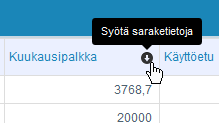
- Click the downward arrow icon on the right edge of the salary type column to open the mass tool
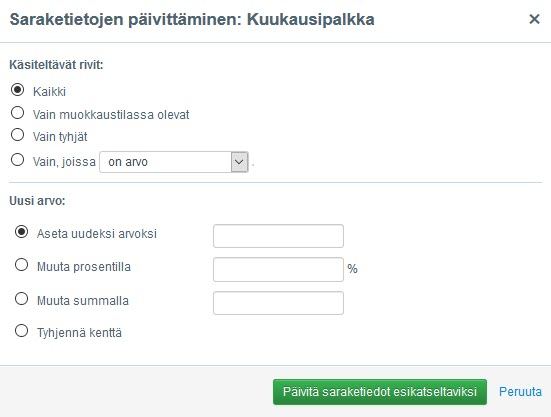
- Handle the column data with the opened tool.
- Close the tool from the cross in the upper right corner or the "Cancel" link at the bottom if you do not want to update the data to the table.
Rows to be handled
Select in the column data update tool which fields the change will be made to:

- All: The change applies to all fields of the column.
- Only those in edit mode: The change applies only to fields that were in edit mode before the tool was opened.
- Only empty: The change applies only to fields that were empty.
- Only those with a value: The change applies to all fields that have a value.
- Only those where the value is equal to/less than/greater than/not equal to: Enter the condition value in the adjacent field. The change applies to fields that meet the condition.

Set new value

- Set as new value: Enter a number (e.g., 1200.00) that will be saved with the given precision.
- Change by percentage: Increase the value with a positive number or decrease with a negative (e.g., -0.3). Rounds the value to two decimal places. Does not update empty fields.
- Change by sum: Increase the value by a sum or decrease with a negative number (e.g., -2.5). Does not update empty fields.
- Set as empty: Empties the fields to be handled.
Perform mass action
- Click the window button to update values for preview.
- Check the values in the table before saving.
Field background colors:

- White: The field is in edit mode, but the value is unchanged.
- Green: The value has been edited.
- Red: The value is incorrect.

Save or cancel changes

- Saving: Click the "Save" button at the bottom of the page. Green fields are saved to the database.
- Canceling: Click the "Cancel" link next to the save button to revert to the state before saving.
- Errors: Correct erroneous data. The system directs to the first erroneous field.


Usage examples
Example 1: Sports benefit for all (€40.00)
- Open the mass tool from the desired column.
- Select "All" rows.
- Set the new value to 40.00.

Example 2: Basic salary reduction by 0.3%
- Open the mass tool from the basic salary column.
- Select "All" or "Only those with a value".
- Set the change percentage to -0.3.

Example 3: Phone benefit increase by 3 euros (€20 -> €23)
- Open the mass tool from the column.
- Select "Only rows where the value is equal to" and set the value to 20.00.
- Increase by sum 3.00 or set the new value to 23.00.

Example 4: Emptying a salary type for some employees
- Find the employees and open the fields in edit mode.
- Open the mass tool.
- Select "Only those in edit mode".
- Select the field emptying function.

Change history
Review changes made to an employee's salary bases from the "Change history" column. Log data has been accruing since 16.11.2023.

From the change history, you can see:
- Who made the change
- When the change was made
- The old and new values

Access rights
Ensure you have the following rights:
- Payroll accountant role (P).
- Edit rights in payroll-specific functions to "employee management".
- Note: With read rights, you can only view the information.

Frequently asked questions
Why doesn't the salary type appear as its own column in salary bases?
The source of the salary type must be "employee's salary bases" and it must be linked to the formulas of the salary model.
Can the mass tool be used to empty fields?
Yes, by selecting the "Set as empty" function.
Does percentage change update empty fields?
No, changing by percentage or sum does not update empty fields.
Where can I see who changed the salary base?
Information can be found in the "Change history" column for changes after 16.11.2023.
Keywords: salary bases, payroll, mass tool, salary type, change history, access rights, salary model
Did you find it helpful? Yes No
Send feedback