To re-invoice a purchase invoice, you need factual verification and approval rights for purchase invoices. Additionally, you need editing rights for the Purchase price.
You can create a Sales invoice from a purchase invoice using the re-invoicing function. Select Purchases > Purchase invoice list > select the purchase invoice by ticking the box. After this, the "Re-invoice x invoices" function is activated at the bottom of the page. You can select multiple purchase invoices for re-invoicing at once.

Alternatively, you can re-invoice a purchase invoice by opening the purchase invoice. Select Purchase invoice actions > Re-invoice purchase invoice rows.
In the view that opens, the re-invoicing settings are shown. First select the customer to be invoiced. Then choose whether to create a new invoice or add the rows to a previous Sales invoice. If the customer does not have previous Sales invoices, this option will not be displayed.

If you select "Add rows to a previous Sales invoice", a menu will appear from which you can select the Sales invoice and preview it if necessary. The list only shows invoices in the same currency.
Additional options:
- Show previously invoiced purchase invoice rows: The re-invoicing page displays all purchase invoice rows, including those products that may have been re-invoiced earlier. Without selection, purchase invoice products that have already been re-invoiced will not appear on the re-invoicing page.
- Defining the re-invoicing product: If the re-invoicing product has not yet been defined, there is a link in the view "You can define the product in the sales basic information". Once the re-invoicing product is defined, you can set it as the product for those Sales invoice rows that do not have a match in the product register.
- Use purchase invoice row calculation targets instead of default calculation targets: This option transfers the calculation targets used on the purchase invoice posting rows to the Sales invoice.
Fetch rows function brings the purchase invoice rows visible on the re-invoicing page.
Note! If the original invoice rows have been removed from the e-invoice, then the invoice cannot be re-invoiced, and a notification will be received: "No suitable re-invoicing rows found on the purchase invoice". In this case, the Sales invoice must be created manually.
On the re-invoicing page, the purchase invoice rows are shown, from which you select the rows to be re-invoiced and make the necessary changes for the Sales invoice. Below are the details and functions marked in the image (1–4).
To select rows in bulk, a billable product must be selected for the rows. If there is no billable product on the row, the bulk selection will not work for that row.

1. Purchase invoice rows (1) column displays the purchase invoice row details.
2. Sales invoice billing rows (2) column allows changing the product to be invoiced, adding a row specification, and changing the quantity to be invoiced. By clicking the info button, you can access product information. The icon in front of the row specification title allows copying the purchase invoice row specifications to all rows.

The product to be invoiced is primarily searched using the purchase invoice product information and secondarily using the product information given in the row specification. The product is searched from the product register and the vendor's product information using the combination of product code and product name. Both must match for the invoiced product to be directly selectable.
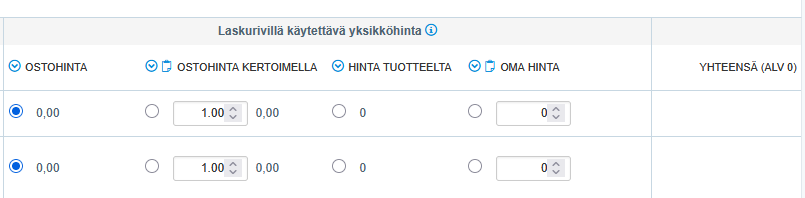
3. Unit price used on the billing row (3) column allows changing the prices that will appear on the Sales invoice. Options are:
- purchase price (the price that was on the purchase invoice for the product row)
- purchase price with a multiplier
- price from the product (the price of the product selected in the invoiced product field)
- a price that you can define manually as desired
The blue arrow button activates the selection for all rows.
The selected price is transferred to the Sales invoice billing row as the unit price, and the final amount on the invoice takes into account other factors affecting the price, such as discounts.
NOTE! If the purchase invoice "quantity x unit price" does not match the row's final amount, the purchase invoice row's final amount is brought to re-invoicing with a quantity of 1.
4. Save draft or Save invoice (4). Once the necessary changes have been made, the selected rows are added to a new or existing invoice according to the previous selection.
Save as draft: The invoice can be saved in the "Draft" state, meaning it cannot be sent yet. This way, the invoice can be completed as needed without worrying about it being accidentally sent forward. Once all necessary information is gathered on the invoice, it can then be changed to ready for sending and sent to the customer. A draft does not create an invoice number or reference number for the invoice. A draft also has no accounting impact and does not appear on reports or, for example, cash flow forecasts. A draft can still be edited even if the draft date is in a locked period, but at that point, the draft date must be moved to an open period for the changes to be saved. If the draft is in a locked period, it can be updated to an invoice only if the date is moved to an open period before this action. A draft cannot be deleted from a locked period, but its date can be moved to an open period before that, and then deletion is possible. If the draft is invoiced, the invoice will have the same dates as the draft, i.e., invoice date and entry date. This will also give it an invoice number and reference number.
In the view that opens, Sales invoice information and functions are displayed, allowing you to navigate either to the purchase invoice or the Sales invoice.

If the purchase invoice has been fully re-invoiced, the re-invoiced field in the invoice list shows "yes". The field must be made visible by selecting this field through the Show columns button and then pressing the Update selections button.
If a re-invoiced row was removed from the created Sales invoice and added again, then the re-invoicing field in the invoice list shows "no", even though it was re-invoiced, because the database connection has been broken in the background.
Step-by-step instructions
Checking user rights
- Make sure you have factual verification and approval rights for purchase invoices.
- Make sure you have editing rights for the Purchase price.
Selecting a purchase invoice from the purchase invoice list
- Select Purchases > Purchase invoice list.
- Select the purchase invoice by ticking the box on the invoice row.
- Wait until the "Re-invoice x invoices" function is activated at the bottom of the page.
- Select "Re-invoice x invoices".
- If necessary, select several purchase invoices at once by ticking the boxes for multiple invoices.
Opening the purchase invoice and re-invoicing from the purchase invoice
- Open the desired purchase invoice.
- Select Purchase invoice actions > Re-invoice purchase invoice rows.
Selecting the customer and Sales invoice
- In the view that opens, select the customer to be invoiced.
- Select whether to create a new Sales invoice or add the rows to a previous Sales invoice.
- If you want to add the rows to a previous Sales invoice, select "Add rows to a previous Sales invoice".
- Select from the list the Sales invoice to which the rows will be added. The list only shows invoices in the same currency.
- Preview the Sales invoice before selecting it, if necessary.
Using the additional options
- Select "Show previously invoiced purchase invoice rows" if you want to see all purchase invoice rows, including those that have already been re-invoiced.
- Check whether the re-invoicing product has been defined in the sales basic information. If not, select the link "You can define the product in the sales basic information" and define the product.
- Once the re-invoicing product has been defined, use it as the product for those Sales invoice rows that do not have a match in the product register.
- Select "Use purchase invoice row calculation targets instead of default calculation targets" if you want to transfer the calculation targets used on the purchase invoice posting rows to the Sales invoice.
Fetching and processing purchase invoice rows
- Select Fetch rows to bring the purchase invoice rows to the re-invoicing page.
- If you receive the notification "No suitable re-invoicing rows found on the purchase invoice", create the Sales invoice manually, because the original invoice rows have been removed from the e-invoice.
- Select the rows to be re-invoiced either row by row or using the bulk selection.
- Make sure that each row to be selected in bulk has a billable product. If there is no billable product on the row, the bulk selection will not work for that row.
Checking row information (1–3)
1. Purchase invoice rows (1)
- Check the purchase invoice row details in the "Purchase invoice rows (1)" column.
2. Sales invoice billing rows (2)
- Change the product to be invoiced in the "Sales invoice billing rows (2)" column, if necessary.
- Add or edit the row specification row by row.
- Change the quantity to be invoiced, if necessary.
- Select the info button if you want to open the product information.
- Select the icon in front of the Row specification title if you want to copy the purchase invoice row specifications to all rows.
Automatic product search
- Take advantage of the fact that the system primarily searches the product to be invoiced using the purchase invoice product information.
- Note that secondarily the product is searched using the product information given in the row specification.
- Be aware that the product is searched from the product register and the vendor's product information using the combination of product code and product name.
- Make sure that the product code and product name match so that the product to be invoiced becomes directly selectable.
3. Unit price used on the billing row (3)
- In the "Unit price used on the billing row (3)" column, select which price will be used on the Sales invoice:
- select purchase price if you want to use the product row price from the purchase invoice
- select purchase price with a multiplier if you want to use the purchase price multiplied by a multiplier
- select price from the product if you want to use the product's own price for the product to be invoiced
- define the price manually if you want to enter the unit price yourself
- Select the blue arrow button if you want to activate the selected price for all rows.
- Note that the selected price is transferred to the Sales invoice billing row as the unit price.
- Note that the final amount on the invoice takes into account other factors affecting the price, such as discounts.
Special case: quantity x unit price does not match the final amount
- Check whether the purchase invoice "quantity x unit price" matches the row's final amount.
- If the values do not match, note that the purchase invoice row's final amount is brought to re-invoicing with a quantity of 1.
Saving the draft and invoice (4)
- Once you have made all the necessary changes, select whether to save the invoice as a draft or as a final invoice:
- select Save draft if you want to save the invoice in the "Draft" state
- select Save invoice if you want to save the invoice as a final invoice
- Make sure that the selected rows are added to a new or existing invoice according to the selection you made earlier.
Handling the draft
- Save the invoice as a draft if you want to complete the invoice later without sending it to the customer.
- Remember that a draft does not create an invoice number or reference number.
- Note that a draft has no accounting impact and does not appear on reports or in the cash flow forecast.
- Edit the draft as needed, even if the draft date is in a locked period.
- Move the draft date to an open period before saving so that the changes are stored.
- Move the draft date to an open period before updating the draft to an invoice if the draft is in a locked period.
- Move the draft date to an open period before deleting it if the draft is in a locked period, and then delete the draft.
- When you invoice the draft, note that the invoice will have the same dates as the draft (invoice date and entry date).
- Note that the invoiced draft receives an invoice number and reference number.
Checking the Sales invoice and navigating to invoices
- Check the Sales invoice information in the view that opens.
- Use the functions in the view to navigate to the purchase invoice, if necessary.
- Use the functions in the view to navigate to the Sales invoice, if necessary.
Checking the re-invoicing status in the invoice list
- Open the invoice list.
- Select the Show columns button.
- Select the "re-invoiced" field to be shown.
- Select Update selections so that the field becomes visible.
- Check that if the purchase invoice has been fully re-invoiced, the "re-invoiced" field shows "yes".
- Note that if a re-invoiced row was removed from the created Sales invoice and added again, the invoice list shows "no" in the re-invoiced field, even though the invoice has been re-invoiced, because the database connection has been broken in the background.
Frequently asked questions
Question: What rights do I need to be able to re-invoice a purchase invoice?
Answer: You need factual verification and approval rights for purchase invoices and editing rights for the Purchase price.
Question: How can I start re-invoicing a purchase invoice from the purchase invoice list?
Answer: Select Purchases > Purchase invoice list, tick the box for the desired purchase invoice and select "Re-invoice x invoices" at the bottom of the page. You can select several purchase invoices at once.
Question: Can I add purchase invoice rows to a previous Sales invoice?
Answer: Yes. In the view that opens, select "Add rows to a previous Sales invoice" and select the desired Sales invoice from the list. The list only shows invoices in the same currency.
Question: Why do I not see all purchase invoice rows on the re-invoicing page?
Answer: If you do not select "Show previously invoiced purchase invoice rows", rows that have already been re-invoiced will not be shown. Select this additional option if you want to see all rows.
Question: What should I do if I receive the notification "No suitable re-invoicing rows found on the purchase invoice"?
Answer: The notification appears if the original invoice rows have been removed from the e-invoice. In this case, you cannot use re-invoicing and must create the Sales invoice manually.
Question: How does the system search the product to be invoiced for a purchase invoice row?
Answer: The product is primarily searched using the purchase invoice product information and secondarily using the product information given in the row specification. The search is performed in the product register and the vendor's product information using the combination of product code and product name, and both must match.
Question: What is the difference between the "Save draft" and "Save invoice" functions?
Answer: "Save draft" saves the invoice in the "Draft" state without an invoice number and reference number, and the draft has no accounting impact. "Save invoice" saves the invoice as a final invoice, which receives an invoice number and reference number and has an accounting impact.
Question: Why does the invoice list show "no" in the re-invoiced field even though the invoice has been re-invoiced?
Answer: If a re-invoiced row was removed from the created Sales invoice and added again, the database connection is broken in the background and the invoice list shows "no" even though the invoice has been re-invoiced.
Keywords
purchase invoice, re-invoicing, Sales invoice, purchase invoice rows, Sales invoice billing rows, re-invoicing product, calculation targets, Fetch rows, Save draft, Save invoice, purchase price, purchase price with a multiplier, price from the product, draft, invoice list, re-invoiced
Did you find it helpful? Yes No
Send feedback