This guide explains how to add a foreign user to Netvisor. The primary way to log in and implement the Netvisor mobile app is always with Finnish bank IDs. If a foreign person does not have Finnish online banking credentials and cannot obtain them, invite them to become a user of the Netvisor mobile application. The foreign user can be invited by a person with the role of User administrator (KH) or accounting office's administrator (TPK) of the company.
If necessary, read the separate instructions for logging in with Estonian, Norwegian and Swedish ID card: Palveluun kirjautuminen Viron, Norjan ja Ruotsin ID-kortilla
CONTENTS
- Adding a foreign user
- Inviting a foreign user to Netvisor
- Login to Netvisor - instructions on how to get started (the invited user) - NEW APP
- Frequently asked questions
Adding a foreign user
Open the view by selecting Company menu (company name in the top left corner) > Users and roles. In this menu you can see the users of the active company and their access rights.

Add a foreign user as follows:
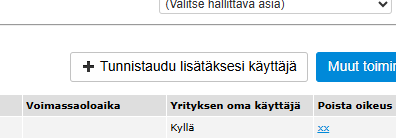
- In the Users and roles view, select the Authenticate to add user function.
- Perform strong authentication with the Netvisor mobile app or bank IDs to verify the identity of the user administrator.
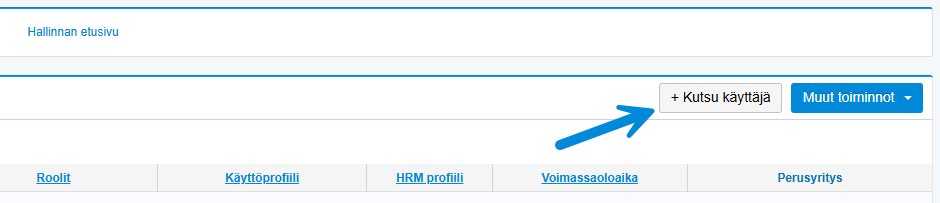
- After successful authentication, open the Users and roles view and select Invite user.
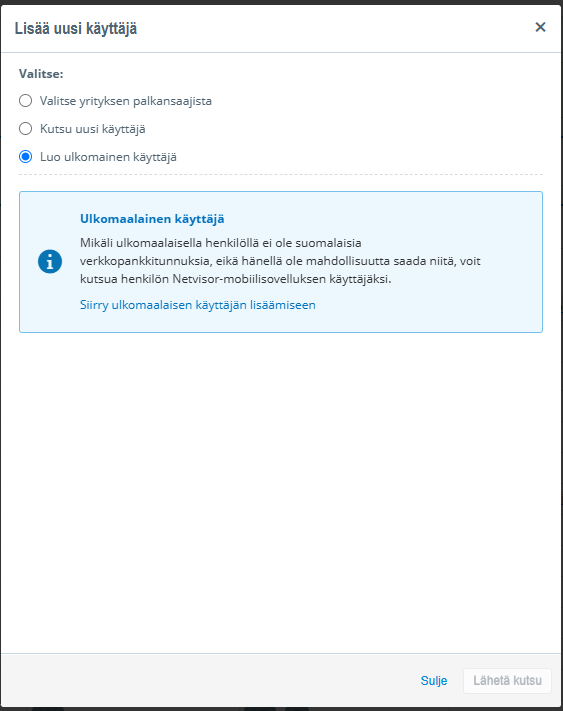
- Open the new user creation window and first select the identification method.
- Select Go to adding a foreign user.
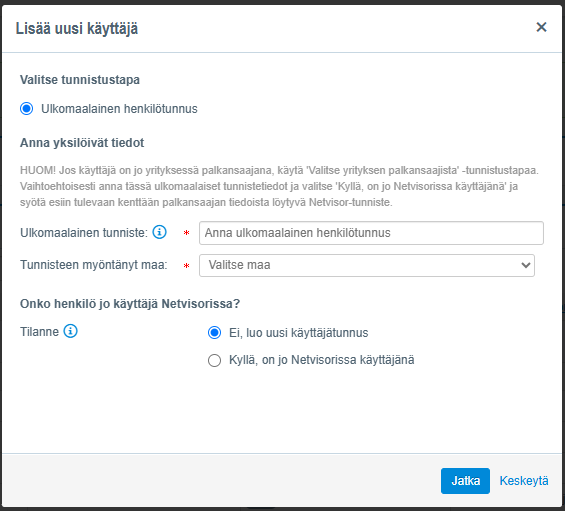
- Add unique data for the foreign user: foreign personal identity code or other unique identifier (for example date of birth) and the country that issued the identifier.
- Select whether the user has already been set up as a user in Netvisor.
- If the user is not already a Netvisor user, continue to the next step.
- Note! It is no longer possible to enter a Netvisor identifier at a later stage. If the identifier is not given, a completely new user will be created and the user IDs cannot be merged.
If the person you want to add is already a Netvisor user, proceed as follows:
- Add the user's Netvisor identifier.
- If the identifier matches a user in Netvisor, identify the user to be added as that user and give the existing user access rights also to this company.
- Ask the user to check their own Netvisor identifier by logging in to Netvisor and selecting their own name in the top right corner > My basic settings. The identifier is also visible in the employee's basic information under foreign identifiers.
- As a KH-role user you can also check the identifier in the user's details.


- Define personal information for the user.

- Define the profiles and roles required for the user.
For more information on roles, see the guide Käyttäjät - käyttöoikeuksien lisäys ja hallinta.


Valid for the time being:
- By default, keep the selection in the valid for the time being field, in which case the access rights are valid until they are removed.
Fixed validity period:
- Deselect valid for the time being and define the validity period of the access rights.
- Once the validity period expires, the person will not be able to log in to the company in question.
- Note! Ending the validity period does not stop any email communication from the company, for example regarding the purchase invoice approval workflow (factual verification, approval, payment).
- If you want to stop the communication, remove the user's ledger access rights or modify the communication settings in the user's personal data.
- Select Add user. The user is created to the active company's users.
After this, edit the user's access rights if necessary via the Users and roles menu.
Inviting a foreign user to Netvisor
Open the user's details by selecting Company menu > Users and roles > click the user's name in the list.
Invite a foreign user to Netvisor as follows:
- Select the link Invite user to log in with mobile application on the left in the user's details.
- Make sure that the details of the user you are inviting are correct. If there is any incorrect information, close the invitation view and edit the user's details before sending the invitation.
- Tick the box to confirm that you have verified the identity of the invited user.
- Select Send invitation at the bottom.
- The invitation will be sent to the user's email address and will be valid for 24 hours.
- The invitation will be sent in English.


After sending the invitation, proceed if necessary as follows:
- Cancel the invitation by selecting Cancel invitation.
- If a new invitation needs to be sent to the user (for example due to a change of phone, without any change in contact information), send a new invitation as a TPK- or KH-role user from the same invitation view.
- The user can also authenticate again with the Visma Connect account they have created, in which case a new invitation does not need to be sent.

Invited user's view and authentication:
- The invited user sees the sender and company name of the invitation.
- The user receives a 16-character sign up code, which they must enter in the Netvisor mobile application.
- If the user does not receive the 16-character sign up code sent by email, please contact Netvisor Customer Service.
- The user completes the authentication by entering the 6-digit confirmation code received by SMS in the application.
If the user does not receive the 6-digit confirmation code:
- The user can request a maximum of two new confirmation codes from the application.
- If the user does not receive the 6-digit confirmation code by SMS and cannot order it themselves, proceed as a TPK- or KH-role user as follows:
- Open the invitation view.
- Select the link Did the invited user not receive the confirmation code?.

Note the following when generating the confirmation code:
- The link Did the invited user not receive the confirmation code? will only appear once the user has entered the 16-character sign up code in the mobile app.
- From the view that opens, a confirmation code is generated, which must be captured before exiting the view and delivered to the invited user.
- The confirmation code is valid for 12 hours.
- The confirmation code also extends the validity of the invitation if it would otherwise expire earlier.
Login to Netvisor - instructions on how to get started (the invited user) - NEW APP
If you don't have Finnish bank ID's or mobile ID, follow these steps to start using Netvisor:
- Ask your company's user administrator to send you a login invitation.
- You will receive an email invitation to start using Netvisor.
- Invitation is valid for 24 hours from the time of sending.
- If you haven't received an invitation yet, contact your company's user administrator.

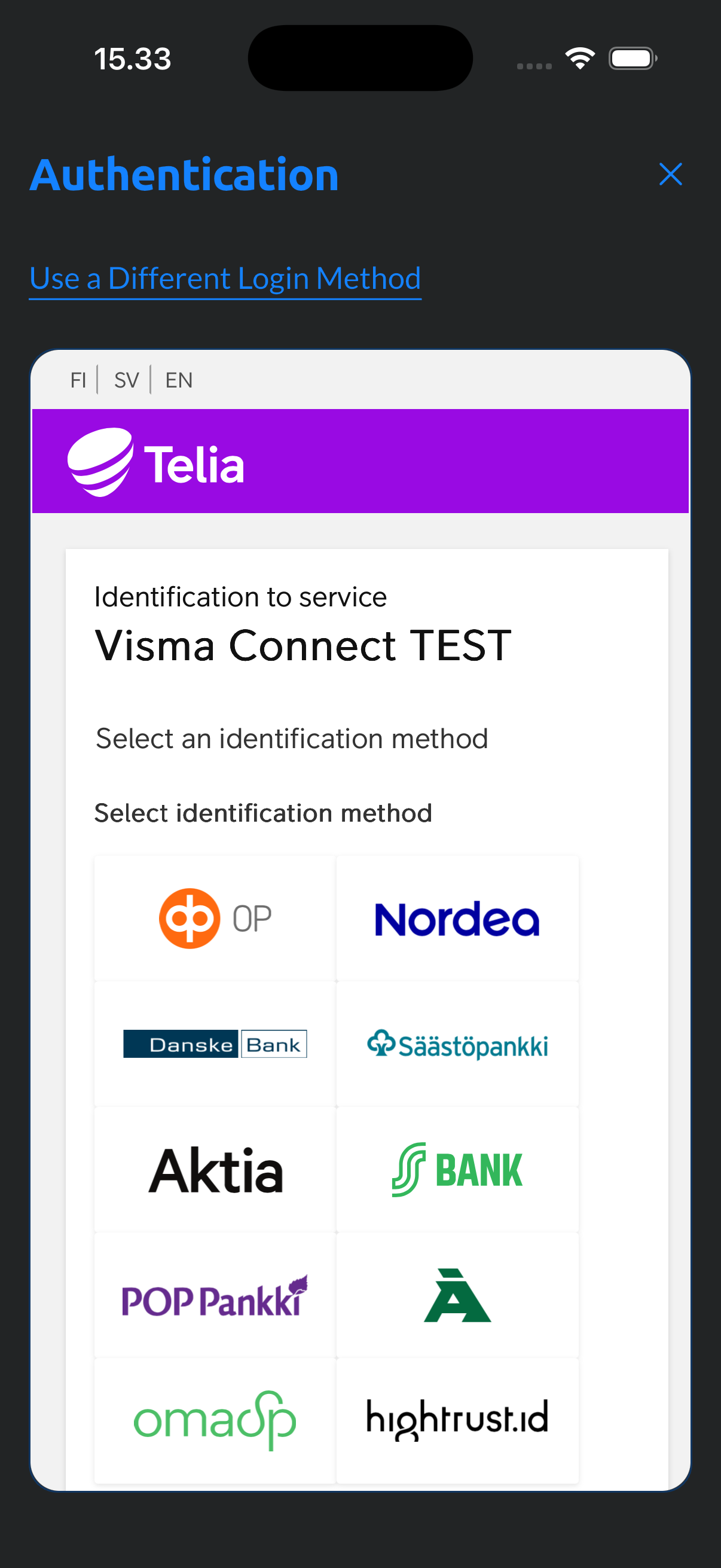
- Download the Netvisor app from your app store, open it and select "Use a Different Login Method".

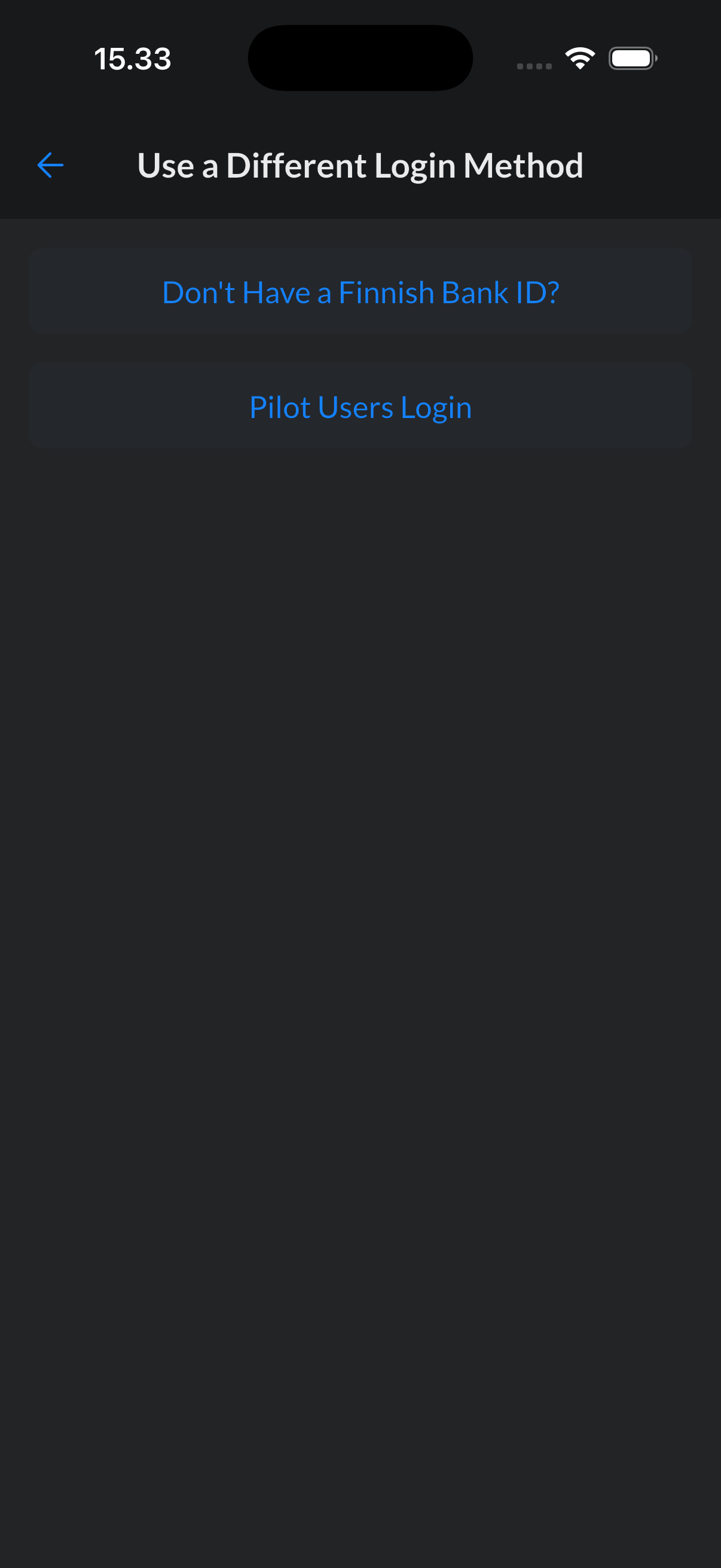
- Select Don't Have a Finnish Bank ID?
4. Select I Have a Sign Up Code.
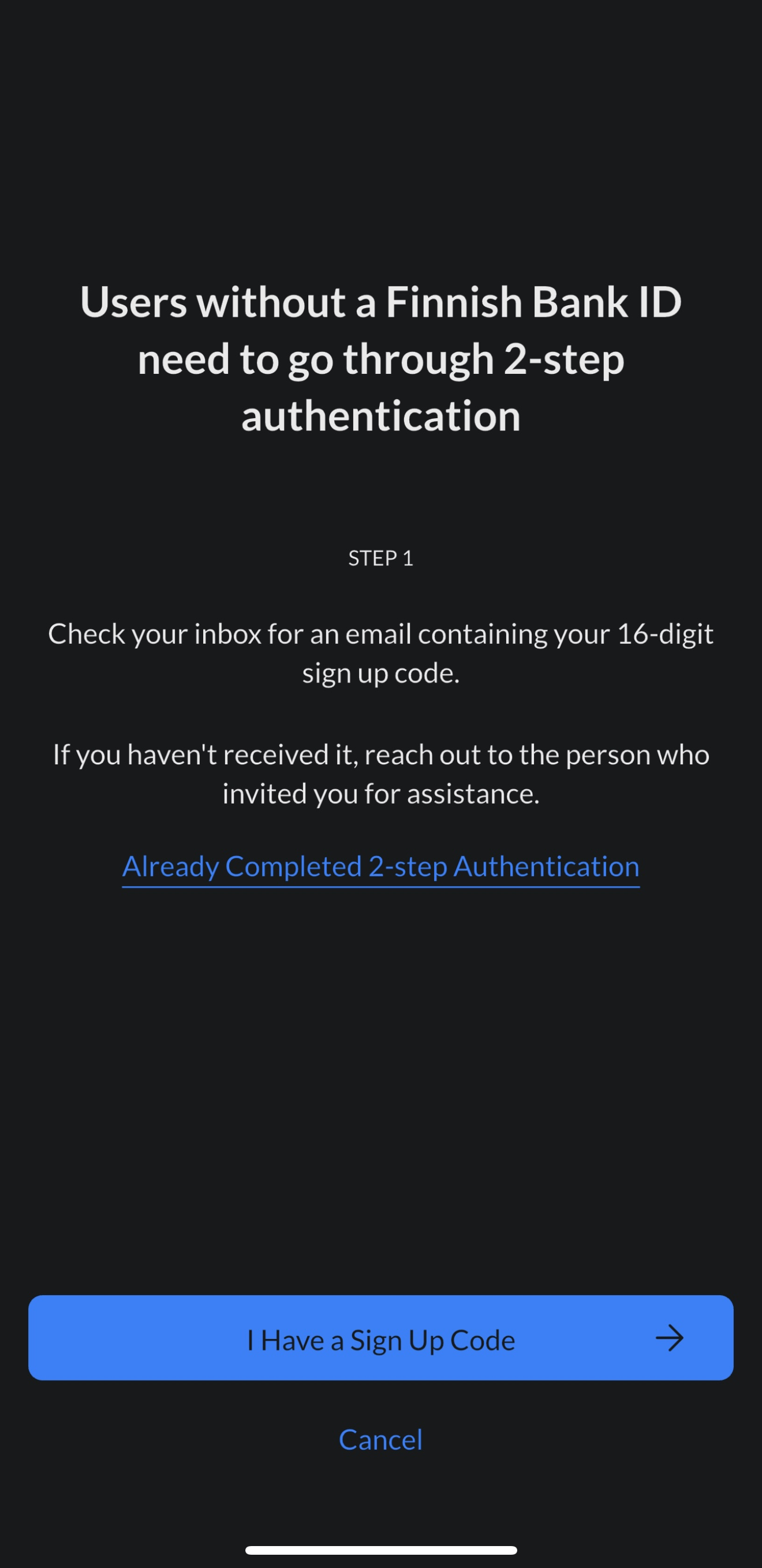
- Enter the 16-digit sign up code from your email invitation into the app.

- Enter the 6-digit verification code you receive via SMS into the app.
- If you don't receive the SMS, click button "Resend Code?" from below.

- If you don't have a Visma Connect account already, go to your email, create a Visma Connect account and password and finalize the sign up process.
- If you do have a Visma Connect account already, tap "Login with Visma Connect" and continue from step 8.

7.


- Enter your Visma Connect email address.

- Go to your Authenticator app (for example Google Authenticator) and enter the security code from your Authenticator app.

- Accept the terms and conditions of the service.

- Create a personal PIN code.

- Confirm PIN-code.

- You're all done and you can now login to both Netvisor on computer and Netvisor mobile app.
Here's how to login to Netvisor on computer:
- Open the Netvisor login page into your browser --> login.netvisor.fi
- Open the Netvisor App and login
- Select “Read QR code for web login”.
- Scan QR code with your mobile app
- Confirm the login with PIN code, fingerprint or Face ID
- You’re in!
Here's how to login to Netvisor mobile application:
- Open the Netvisor app and login with PIN code, fingerprint or Face ID
- You’re in!
Pilot users' login
Avainsanat/key words: ulkomaalainen käyttäjä, kutsuminen, kirjautuminen, login, netvisor app, netvisor login, netvisor mobile application
Frequently asked questions
I am logged out of the app. Do I have to be invited to sign in again?
If you have previously implemented Netvisor Mobile and created Visma Connect credentials, log in to the application with your Visma Connect credentials as follows:
- Select Don't Have a Finnish Bank ID? when logging in.
- Select Already Completed 2-step Authentication.
- Enter the email address you have used to log in to Visma Connect.
- Enter the password.
- Create a PIN code.
- Confirm the PIN code.
Note! If you sign out using the "Sign out from all devices" option, implementing Netvisor Mobile again requires a new invitation via the browser.
What is the difference between Lock, Logout and Logout from all devices?
- Lock allows you to end your session and the app will log you out. You can log back into the app with facial recognition, fingerprint or PIN.
- With Logout the app will log you out. In this case, the application will require you to re-authenticate with your Visma Connect account or, for Finnish users, with bank IDs.
- With Logout from all devices the user ID is logged out from Netvisor Mobile on all devices. Logging in requires a new invitation from the Netvisor browser version by a KH user.
How do I add a foreign user to Netvisor without Finnish bank IDs?
Add the foreign user in the Users and roles view, define a foreign personal identity code or other unique identifier and the country that issued the identifier, add the necessary personal information, profiles and roles and invite the user to log in with the mobile application.
How do I invite a foreign user to become a Netvisor mobile app user?
Open Company menu > Users and roles > select the user's name > select Invite user to log in with mobile application, check the user's details, confirm the identity and send the invitation to the user's email address.
What should I do if the invited user does not receive the 6-digit confirmation code by SMS?
Ask the user to order the code from the application (maximum two times). If the code does not arrive, generate a confirmation code as a TPK- or KH-role user from the invitation view via the Did the invited user not receive the confirmation code? link and deliver the code to the user.
How does a foreign user log in to Netvisor on a computer using the mobile application?
Ask the user to open login.netvisor.fi in the browser, open the Netvisor app, select Read QR code for web login, scan the QR code and confirm the login with PIN code, fingerprint or Face ID.
Keywords
ulkomaalainen käyttäjä, kutsuminen, kirjautuminen, login, netvisor app, netvisor login, netvisor mobile application
Did you find it helpful? Yes No
Send feedback