This guide will help you manage the basic data and settings of sales. You will learn to use different settings such as complaint time, penalty interest, and collection charges. Additionally, you will learn to manage sellers, discounts, payment methods, and terms of delivery.
You can access the view by selecting Sales > Settings > Basic data and settings > Sales basic information. At the top of the view, there are tabs for Sales basic information, Sellers, Payment method management, Payment terms, Delivery methods, Terms of delivery, and Auxiliary business names. This guide goes through the settings one tab at a time.

Sales basic information
Complaint time:
The defined complaint time is printed on offers, orders, and sales invoices.
Penalty interest:
Penalty interest is printed on offers, orders, and sales invoices. This information is used as the basis for calculating interest and collection invoices.
Collection charge:
Enter the amount of the collection charge used by the company in the Collection charge field. This amount is used as the default, for example, in customer-specific collection.
Temporary customer in accounts receivable:
By default, the system's temporary customer is Temporary Customer. The user can choose the desired temporary customer from the system's customers. Multiple temporary customers can be defined.
- Hold down the CTRL key while making the selection.
- Select the desired customers with the left mouse button.
If the temporary customer has been removed, you can create a TEMP customer yourself.
- Create a customer with the customer code TEMP without a business id.
- Save the customer as a personal customer.
- Mark the customer as a TEMP customer in the Sales basic information view.
- After this, you can remove the personal customer information from the customer card if you wish.
Default product for re-invoicing purchase invoices:
The product used on the sales invoice item lines in the re-invoicing of purchase invoices comes from this setting if the products of the re-invoiced purchase invoice are not found in the product register. Read more about re-invoicing purchase invoices here.
Default printing formats:
This section defines the default printing formats.
- A customer-specific default printing format can be defined in the customer's information.
- The format defined in the customer's information overrides the Sales basic information setting.
- You can change the printing format from the offer, order, or invoice during printing if you want to deviate from the default.
- The default printing format comes either from the sales basic information or from the customer.
Additional settings for invoice printout (does not affect invoice information):
Decimals shown in product unit price:
This setting defines how many decimals will appear on the sales invoice printouts for net and gross prices on the invoice line.
- A minimum of two and a maximum of five decimals can be shown.
- In the Netvisor invoice view, more decimals may be visible than limited in the settings.
- The decimal limit set in the settings will appear on the printout, pdf letter, and email pdf file.
- The decimals visible in the unit price field in Netvisor are sent in the E-invoice message.
- According to the EN 16931 standard, the value must be shown accurately and cannot be rounded.
Bundle product lines of models on printouts:
- Select this setting if you want products from the same model originating from the same stock to be bundled under a common product line on the printout, even if they are itemized on the invoice.
- The selection is visible if extended product management is in use.
Information shown on printout
By changing the additional settings for printing, the user can choose the desired combination of different options, for example, if pre-printed forms are used or the company's logo includes the company name.
Default calculation targets for sales invoices:
Invoice-specific:
- Calculation targets cannot be selected on the invoice line.
- Calculation targets (Financial management > Settings > Calculation target management) cannot be defined as default targets in the customer or product register.
Invoice line-specific:
- Calculation targets can be defined on the invoice line.
- Calculation targets can be set to appear by default in the customer or product register (Financial management > Settings > Calculation target management).
Allow email sending for event types:
In this section, select which events can be forwarded via email.
- Select the event types for which you want to allow email sending.
- Enable the "Sales invoice forwarding via email" setting in Company menu > Electronic service channels.
Inventory valuation method:
Shows which inventory valuation method is in use.
- Change the inventory valuation method by selecting the "Manage" link.
- Read more about the methods here.
Automatically allocate partial payments by default:
This selection defines whether partial payments are automatically allocated to invoices based on the reference.
- Select this setting if you want partial payments to be automatically allocated to invoices based on the reference.
- Note that changing this selection only affects new invoices, not those already in Netvisor.
The rounding tolerance for incoming payments is defined separately.
- Open the setting by selecting Company menu > Company basic data and settings > Basic data > Rounding tolerance for payments.
Do not send advance notifications for direct debits:
This setting affects companies that use direct payment.
- Select whether an advance notification is sent to the customer for direct payment invoices.
- Advance notifications cannot be sent via email.
- For a direct payment invoice, two materials are always created in the sending process:
- the direct payment material sent electronically to the bank
- the advance notification of the direct payment sent to the customer
- The direct payment materials sent to the bank must always be sent first.
- Send the customers' advance notifications only after this.
- In the sending process, a notification related to this will appear: "Events that are dependent on each other have been opened in the sales process. First process the dependent events (such as direct debit requests or factoring notifications)".
Bring customer's default contact person to the invoice:
A default contact person can be given on the customer's Additional information editing tab.
- Select this setting if you want to show the customer's default contact person on the invoice.
- Leave this setting unselected if you do not want to show the default contact person on the invoice.
Sellers

The view lists all users and allows you to select who among them are classified as sellers.
- Select the users you want to classify as sellers.
- After selection, the user can be chosen as a seller for an offer, order, or invoice.
- Add a new seller from the "Add new seller" link in the upper right corner.
- Edit seller information by clicking the "Edit" link (in the image, section 1).
- Remove the added seller from the "Delete" link (in the image, section 2).
- If a seller stops working at the company, leave them in the seller list and remove the checkmark from the front of the row so that the seller history remains.
- If you remove the seller, their old sales will be transferred to unallocated sales.
- A seller cannot be removed if they are set on an invoice or invoices or if they are set as the default seller behind a customer.
A commission percentage can be added for the seller, which they receive from the sales they make.
- The commission percentage appears on the invoice lines when the seller is selected for the invoice.
- If both the seller and the product have a commission percentage, the commission information from the seller overrides the product commission.
- The commission percentage selected in the seller information will be the commission on the invoice.
Commissions are visible in the Seller report.
- Open the report by selecting Sales > Sales reports > Report format: Seller report.
- The report shows the commission if the user has read or edit rights to commission management (Company menu > Sales and accounts payable rights).
Discounts

On the Discounts tab, you can give a mass discount for a specific combination of customer group and product group.
- Select the customer group for which you want to give a discount.
- Select the product group to which the discount applies.
- Enter the discount percentage.
- Set the validity period for the discount.
In the example below, a 5% discount is given if the customer belongs to the customer group "Customer group 1" and the invoice includes a product belonging to the product group "Product group 1".

Managing discounts requires edit rights to the basic functions of the accounts receivable.
Payment method management
 Netvisor allows you to add and manage payment methods that are used on sales invoices, orders, and offers.
- Add a new payment method by selecting "New payment method".
- Enter the name of the payment method.
- Select the accounting account for the payment method.
- Save the payment method.
- Edit the payment method by opening it via its name.
- Delete the payment method using the "Delete" function at the bottom left of the edit view.
Managing payment methods requires edit rights to the basic functions of the accounts receivable.
Payment terms
 New payment terms can be created in Netvisor, which are used on sales invoices, orders, and offers.
- Add a payment term for each language in which you create invoices (for example, in English).
- Use the Default payment term selection to choose which payment term will be the default for a new customer.
- Select the customer's default payment term in the customer information if you want to deviate from the company's default.
Example 1 (no cash discount):
- Enter the net days (for example, 30).
- Set the cash discount days to 0.
- Set the discount percentage to 0.
Example 2 (cash discount in use):
- Enter the net days (for example, 30).
- Set the cash discount days to, for example, 14.
- Set the discount percentage to, for example, 5.
- This creates a payment term where the net days are 30, but if the invoice is paid within 14 days, a 5% cash discount is received.
- You can use your own specification for the payment term if you wish.
Default payment term:
The Default payment term selection allows you to choose the company's default payment term, which will be the default on the invoice.
- Select the company's default payment term.
- Select the customer's default payment term in the customer information if you want it to override the company's default payment term.

Managing payment terms requires edit rights to the basic functions of the accounts receivable or accounts payable.
Delivery methods
 On the Delivery methods tab, you can add delivery methods that are used on sales invoices, orders, and offers.
- Add the delivery method you want to use on sales documents.
- Use the Default delivery method selection to choose which delivery method will be the default for a new customer.
- Select the customer's default delivery method in the customer information if you want to deviate from the company's default.

Managing delivery methods requires edit rights to the basic functions of the accounts receivable.
Terms of delivery
 On the Terms of delivery tab, you can add terms of delivery that are used on sales invoices, orders, and offers.
- Add the terms of delivery you want to use on sales documents.
- Use the Default terms of delivery selection to choose the company's default terms of delivery.
- Select the customer's default terms of delivery in the customer information if you want it to override the company's default terms of delivery.
Managing terms of delivery requires edit rights to the basic functions of the accounts receivable.
Management of auxiliary business names:
If the company uses auxiliary business names, their information is entered behind this link.
- Enter one or more auxiliary business names according to the company's needs.
- Use the information entered under the auxiliary business name on offers, orders, and sales invoices when you select that auxiliary business name as the sender.
- Read more about auxiliary business names in their own guide.
Tax text on invoice
You can add your own tax texts via Sales > Sales basic information and settings > Sales basic information > Tax text on invoice

Here you can add any desired tax texts, which will then be available for selection on the sales invoice.
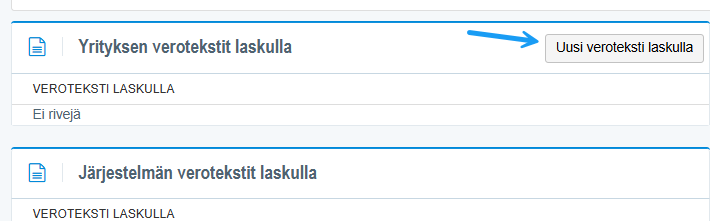
Once the desired text has been added, it can be found on the sales invoice in the Tax text on invoice menu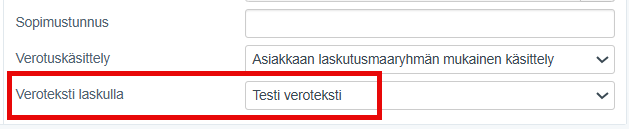
You can delete an added tax text (Sales > Sales basic information and settings > Sales basic information > Tax text on invoice) by clicking the name of the tax text, provided it has not been used. If the tax text has been used on an invoice or set behind a customer, it cannot be deleted.
Frequently asked questions
Question: Where can I find the basic data and settings of sales?
Answer: Open the view by selecting Sales > Settings > Basic data and settings > Sales basic information.
Question: How do I define the default printing format for sales invoices?
Answer: Define the default printing format in the Sales basic information view under Default printing formats. You can override the setting per customer in the customer information and also change the printing format from the offer, order, or invoice during printing.
Question: What should I do if the Temporary Customer has been removed?
Answer: Create a customer with the customer code TEMP without a business id, save it as a personal customer, mark the customer as a TEMP customer in the Sales basic information view, and remove the personal customer information from the customer card if needed.
Question: How do I enable sending sales invoices by email?
Answer: In the Sales basic information view, select the desired events under Allow email sending for event types and enable "Sales invoice forwarding via email" in Company menu > Electronic service channels.
Question: How do I define commissions for sellers and where can I see them?
Answer: Open the Sellers tab, select the seller, and enter the commission percentage in the seller information. Commissions are visible in the Seller report (Sales > Sales reports > Report format: Seller report) if the user has read or edit rights to commission management.
Question: How do I create a payment term with a cash discount?
Answer: Create a new payment term, enter the net days (e.g. 30), set the cash discount days to, for example, 14, and the discount percentage to, for example, 5. In this case, the invoice is due in 30 days, but if it is paid within 14 days, the customer receives a 5% cash discount.
Question: What rights do I need to manage discounts, payment methods, payment terms, and delivery methods?
Answer: You need edit rights to the basic functions of the accounts receivable. Managing payment terms is also possible with edit rights to the basic functions of the accounts payable.
Keywords: Sales basic information, penalty interest, collection charge, sellers, discounts, payment methods, payment terms, delivery methods, terms of delivery, default printing formats
Did you find it helpful? Yes No
Send feedback