 Thank you for choosing e-invoicing! You are reducing your environmental impact at the same time.
The guide covers the process of implementing consumer e-invoicing in Netvisor through a supported bank. The guide addresses step-by-step actions such as setting up a bank account, creating and processing billing notifications, and managing e-invoicing. The guide explains how to proceed if consumer e-invoicing has remained active in the old system and how to proceed if the company's bank changes.
CONTENT
- Service activation and starting use
- Creating a billing notification
- Sending a billing notification
- Transfer of consumer e-invoicing to Netvisor from another system
- Consumer e-invoicing transfer tool
- Consumer e-invoice billing notifications
- Processing receipt notifications
- Sending consumer e-invoices
- Canceling a consumer e-invoice
- Canceling a direct debit invoice
- Local printing
- Customer changes bank
- When the company's bank changes
- Consumer e-invoicing with auxiliary business names.
- Consumer e-invoicing, if it has remained active in the old system
Service activation and starting use
Consumer e-invoices are sent from Netvisor to customers through bank connections. They do not go through Maventa.
You can activate consumer e-invoicing as follows:
- Negotiate with the company's own bank about sending consumer e-invoices and make a payment traffic agreement with the bank.
- Set the agreement in the bank's system to Netvisor's bank group-specific WebServices channel.
- In Netvisor, open Financials > Bank account management (or the corresponding view) and check that the company's bank account has been added to the bank accounts. You can open the instructions for adding bank accounts by selecting bank account management.
- Open the bank account information and select the option "Account available on invoice forms" so that the sender's e-invoice address is formed for the billing notifications to be sent.
- Open the company's invoicing addresses by selecting the company name > Invoicing addresses.
- Add the same bank account to the Invoicing addresses page as a new e-invoice address.
- In the e-invoice address information, select the correct format for the e-invoice address (IBAN/OVT) according to the payment traffic agreement.
Note: If the company has a Danskebank account, for Danskebank the consumer e-invoice agreement is made to an IBAN-formatted address.
In the view you can see the company name, under which the invoicing addresses are opened.

In the Invoicing addresses view:
- Select the bank account from the menu.
- Select the option "Consumer e-invoice sending".
- Select whether the agreement was made in IBAN or OVT format.
- Note that the operator id and intermediary are automatically retrieved from the bank account.

Creating a billing notification
When the bank account has been added to the bank accounts and consumer e-invoice sending has been added to the desired bank account in invoicing addresses, you can create billing notifications.
You can open the view by selecting Sales > Billing > Consumer e-invoicing. The view shows the "Consumer e-invoicing" function:


You can create a new billing notification as follows:
- Open Sales > Billing > Consumer e-invoicing.
- Select the link "Add new billing notification" in the upper right corner.
User rights:
Access to the view and editing requires, for example, accounts receivable user rights or broader rights. For basic data, the user must have edit rights in basic data management and at least edit rights to the basic functions of accounts receivable.


Mandatory fields for the billing notification are marked with a red star:
- E-invoice address (target bank)
- Instructions for the invoice recipient (in Finnish)
- Invoice subject text (Finnish)


E-invoice address
- Select the bank account for which the payment traffic agreement for sending consumer e-invoices has been made.
- The selectable bank accounts are those whose basic information has the option "Show address on invoicing address printout" selected. If the correct account is not shown in the list, check the account settings.
Instructions for the invoice recipient
- Add the instruction text visible in the customer's online bank from the biller to the payer, for example: "After ordering the e-invoice, we will no longer deliver paper invoices".
Service level
- Select "E-Invoice and direct payment" as the service level, even if the company's customers currently do not have a need to receive direct payment invoices. If there is a need for sending direct payment invoices later, this will not be possible if direct payments have not been selected in the service level of the billing notification. Changing the service level afterwards requires sending a change notification.
Customer identification information
- Choose whether to use the previous invoice reference number or customer number for customer identification. If the customer number has leading zeros, Netvisor does not remove them.
Select banks to which the billing notification is sent
- Select all banks on the notification, even if the company's current customers are not customers of all banks. This way, the creation of a consumer e-invoice agreement for a new bank group customer is not prevented.
Invoice subject
- Select a subject that describes the billing so that the customer can select the correct billing subject when making the agreement, for example Electricity bill, Water charge, Membership fee. The same biller can have several different billing notifications with different invoice subjects. Separate billing notifications must be sent for each separate invoice subject, even if the bank account is the same.
- The Finnish subject is mandatory. Other languages are recommended to be filled in, and the language versions must be written in the respective language.
Biller's bank contact information
- Select the company's bank accounts to which customer payments are desired to be made.
Sending a billing notification
When you have filled in the billing notification information, proceed as follows:
- Select the "Continue to sending page" button at the bottom of the page.
- In the view that opens, check the information of the notification to be sent.
- If you notice anything that needs to be corrected, select "Return to the previous page" and edit the notification.
- When all the information is correct, select "Send e-invoice billing notification to the bank".


A successful send shows a confirmation notification:


Once the material has been sent to the bank, the company is usually found in the bank within a couple of days, and then individual customers can receive e-invoices from this company.
You can check the company's visibility in the bank as follows:
- Log in to the bank with your personal banking credentials.
- Check whether the company is found in the bank's list of companies from which consumer e-invoices can be received.
- Check that the company is not shown multiple times in the list.
- If the company is shown multiple times, select in Netvisor the entry where the invoice subject text matches the invoice subject text in Netvisor.
- If the other billing notification is from the old system, send a removal notification for this billing notification from the old system.
The removal notification only removes the specific billing notification from the bank. If a customer chooses the wrong billing notification, the authorisation does not come to Netvisor but goes to another program.
Transfer of consumer e-invoicing to Netvisor from another system
If the company has sent consumer e-invoices from another system and wants to transfer the billing notifications valid in the banks, as well as the company's customers' receipt notifications, to Netvisor, you can do the transfer with the transfer tool.
You can open the transfer tool by selecting Sales > Consumer e-invoicing > Import billing notifications (1) / Import receipt notifications (2).
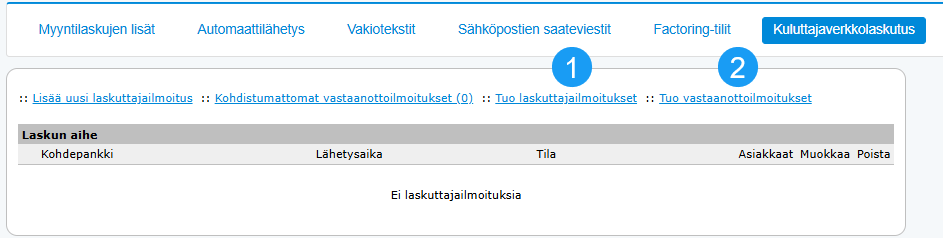
NOTE! It is good to allocate time for the transfer of consumer e-invoicing. There may be a billing break during the transfer if Change messages need to be made in the old system before the transfer.
Before transferring billing and receipt notifications, the customer must ensure the following:
- The company is established in Netvisor.
- Customers are established in Netvisor and customer cards have customer numbers. Receipt notifications are allocated in Netvisor based on the customer number. If the customer numbers in Netvisor match the customer numbers in the receipt notifications, the receipt notifications will automatically be allocated to the customer cards after the transfer. The customer numbers in Netvisor must match those in the old system.
- The company's bank accounts include the bank account to which consumer e-invoicing is linked. The payment traffic agreement with the bank must also include the sending of consumer e-invoices through Netvisor. NOTE! The bank account must be the same as the one selected as the biller's e-invoice address for the billing notifications to be transferred.
- The biller's e-invoice address is found in the Invoicing addresses view and the correct format IBAN / OVT is selected for the address according to how it is on the billing notifications. The purpose of use for the e-invoice address is selected as “Consumer e-invoice sending”.
- All the company's bank accounts to which payment transactions are desired are established in Netvisor.
- The format requirements for the material to be transferred:
- Billing notifications are imported in XML format.
- Receipt notifications are imported in XML or CSV format.
- The materials can be either as individual files or all in one file, however, so that billing notifications are in their own file and receipt notifications in their own.
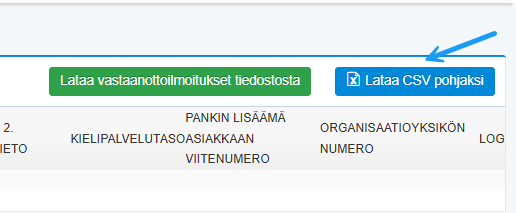
- In the tool it is possible to download a CSV template for receipt notifications, into which you can enter the information manually if necessary.
Other important considerations before transfer:
- If the company's bank is Danske Bank and the agreement for sending consumer e-invoices has been made in the bank to the biller's OVT-formatted e-invoice address, first change the address on the bank's payment traffic agreement to an IBAN-formatted e-invoice address. After this, send Change messages from the old system to all banks where the biller's e-invoice address is changed to an IBAN-formatted e-invoice address. When the Change messages have been sent to the banks, you can transfer them to Netvisor a few banking days after sending the Change messages.
- If the company's consumer e-invoices are sent through an intermediary bank in the current program (a different bank than the customer's own bank where consumer e-invoicing is valid), send Change messages from the old system to all banks where the biller's e-invoice address is changed to the company's own bank's e-invoice address. When the Change messages have been sent to the banks, you can transfer them to Netvisor a few banking days after sending the Change messages. NOTE! The Change notifications made are transferred to Netvisor.
- If the billing notifications to be transferred have been sent with the allocation information “reference number”, the customers' receipt notifications will not automatically be allocated to the customer cards if the invoice history has not been transferred to Netvisor. In this case, the transferred receipt notifications must be manually allocated to the customer cards (Sales > Billing > Consumer e-invoicing > link behind Allocate receipt notifications).
- If the billing notifications to be transferred have been sent with the allocation information “reference number” and “customer number”, the customers' receipt notifications will automatically be allocated to the customer cards provided that the customer cards have the customer number corresponding to the receipt notifications.
- The account to which customers make payments must also be found in Netvisor. If an intermediary account has been used in the previous program, make a Change message in the old system before transferring the billing notification, where the bank account (to which customer payments arrive) is changed to the company's own account.
- The encoding of the material to be imported must be ISO-8859-1 to ensure that special characters are correctly formed in Netvisor.
Consumer e-invoicing transfer tool
First, the billing notifications valid in the banks must be transferred.
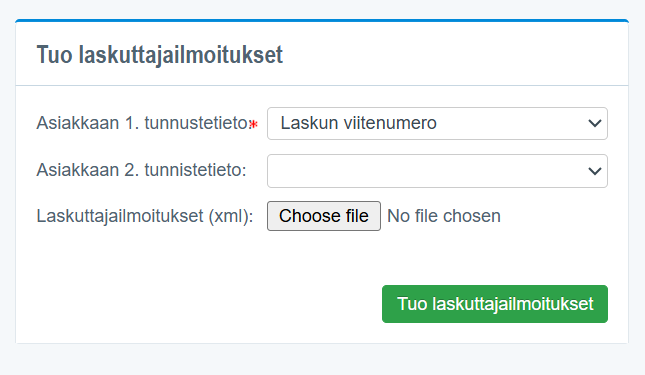
Once the billing notifications have been transferred, the customers' receipt notifications can be transferred.

Receipt notifications can be transferred in XML or CSV format.
You can use the CSV template as follows:
- Select the "Download CSV as template" button.
- Fill in the receipt notification information in the CSV template.
- Import the completed CSV file into the tool.
The mandatory fields for importing receipt notifications are: Message type (Message ActionCode), Identifier (PaymentInstructionIdentifier), SellerPartyIdentifier = business id, Date (ReceiverInfoTimeStamp), E-invoice address (InvoiceRecipientAddress) and intermediary bank's BIC code (InvoiceRecipientIntermediatorAddress).
PaymentInstructionIdentifier is found in the billing notification message in the paymentinstrucitionIdentifier field. Note that you must check from the message whether the information is the same for all banks or whether there is an individual number per bank.
We recommend using XML transfer if the material can be obtained from the sending program as an XML file. XML transfer is easier and does not require editing the CSV file, for example in Excel.
When you have selected the receipt notification file and selected "Load receipt notifications from file", the material opens in the preview view.
If the material is not in the correct format based on the CSV template, the "Load receipt notifications from file" button does nothing and the selected file is removed from the transfer. In this case, you must use the downloaded CSV template and enter the information through that template so that you can transfer the material.
CSV file fields
MessageActionCode = Enter ADD here, as it is new additional information.
SellerPartyIdentifier = Enter the business id of the company to which the receipt notification is transferred. This is mandatory information.
PaymentInstructionIdentifier = Identifier field, which is mandatory. This is obtained from the billing notification's paymentinstructionIdentifier field. Check whether the information is the same for each bank or different per bank. If the information is different per bank and the same number is used, the billing notification cannot be transferred and the program does not allow the transfer.
ReceiverInfoTimestamp = Date field in the format day/month/year, for example 10/02/2026. This is mandatory information.
BuyerOrganizationName = Name of the customer in the receipt notification.
BuyerStreetName = Customer's address.
BuyerTown = Customer's address place of business.
BuyerPostCodeIdentifier = Customer's postal code.
CountryCode = Country code, for example FI.
CountryName = Country name.
BuyerPostOfficeBoxIdentifier = Customer's post office box address.
InvoiceRecipientAddress = Bank account / consumer network address. This is mandatory information.
InvoiceRecipientIntermediatorAddress = Customer's bank account BIC/Swift code. This is mandatory information.
SellerInvoiceIdentifier1 = Allocation information 1. Enter either the customer number or reference number here. If you use the customer number, the receipt notification is allocated to the customer whose customer number matches. If the customer number is not found, the notification goes to unmatched and you must then manually allocate it to the desired customer.
- If the billing notifications to be transferred have been sent with the allocation information “reference number”, the customers' receipt notifications will not automatically be allocated to the customer cards if the invoice history has not been transferred to Netvisor. In this case, the transferred receipt notifications must be manually allocated to the customer cards (Sales > Billing > Consumer e-invoicing > link behind Allocate receipt notifications).
- If the billing notifications to be transferred have been sent with the allocation information “reference number” and “customer number”, the customers' receipt notifications will automatically be allocated to the customer cards provided that the customer cards have the customer number corresponding to the receipt notifications.
SellerInvoiceIdentifier2 = Allocation information 2. Enter either the customer number or reference number here. The logic works as described above.
InvoiceRecipientLanguageCode = For example FI.
BuyerServiceCode = Code 00 or 01.
00 = consumer e-invoice
01 = direct payment
If you do not specifically provide BuyerServiceCode information to Excel, all transactions will go with the consumer e-invoice code.
EpiRemittanceIdentifier = Bank-added customer reference number. Not mandatory information.
BuyerOrganisationUnitNumber = Organisation unit number. Not mandatory information.
When the transfer is started, its duration depends on the number of customers to be transferred. In the view, the program shows at which point of the transfer it is per row to be transferred. When all rows have been processed, the receipt notifications have been received.
Those receipt notifications where the allocation information did not match are shown under the Unmatched receipt notifications link. You can manually allocate these to the desired customer or delete the receipt notification if it is extra and the customer in question will no longer be used.
Only valid ADD messages need to be transferred from customers' receipt notifications. If you cannot filter only ADD messages from the current system, you can import all receipt notifications to Netvisor. In this case, the latest notification by timestamp will remain valid.
Finally, ensure that the company's payment traffic agreement for sending consumer e-invoices is set to Netvisor's WS channel before sending consumer e-invoices from Netvisor. If the agreement is not in order, the sent consumer e-invoices will return in error.
Consumer e-invoice billing notifications
Sent billing notifications are visible in the "Consumer e-invoicing" view.
The view shows the status of the billing notification:
- Processed = The billing notification has been successfully processed in the company's bank.
- Erroneous = The processing of the billing notification has remained in error at the bank.
- Service agreement missing = The company's payment traffic agreement for sending consumer e-invoices is not in order, or the billing notification has been sent with an incorrectly formatted sender's e-invoice address.


You can view by bank the receipt or removal notifications received from billing customers for the billing notification, as well as the history of sent billing notifications, by selecting the timestamp (link) in the Sending time column.
There are three different types of billing notifications:
Billing notification
- The first notification to be sent, which activates consumer e-invoicing.
Change notification
- With a change notification, you can change the information of a previously sent billing notification, such as the invoice subject, company name or address information. The change notification can be sent per bank by selecting the edit icon, making the desired changes, continuing to the sending page and selecting "Confirm edit". This sends a CHANGE message.
Removal notification
- With a removal notification, the billing notification corresponding to the selected invoice subject is removed from the bank to which the removal notification is sent.
- In the bank, in addition to the billing notification, the receipt notifications made by customers for the respective invoice subject are removed.
Editing and removing a billing notification
You can edit an existing billing notification as follows:
- Select the pencil-paper icon in the "Edit" column.
- Edit the billing notification information.
- Continue to the sending page and send the change notification to the bank.
You can remove a billing notification as follows:
- Select the red cross in the "Remove" column.
Edit and removal notifications are always made per bank. A notification sent to one bank is only processed in that bank.


Processing receipt notifications
Customers' consumer e-invoice receipt notifications arrive electronically from the bank to Netvisor. The transmission time depends on the bank and is usually 1–3 banking days.
NOTE! For the receipt notification to match or be manually matched to the customer, the customer must be an individual customer. The customer card must have the option "Individual customer" selected.
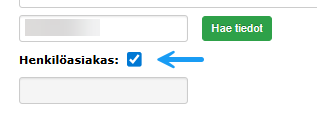
Consumer customer's customer card cannot be manually saved with e-invoicing information.
For the electronically received receipt notification to automatically match the customer card in Netvisor, the following conditions must be met:
- If the matching criterion is the reference number, the customer must have been invoiced at least once from Netvisor. If the matching criterion is the customer number, the receipt notification automatically matches without the customer having been invoiced yet. The customer card must be created and active.
- The customer provides on the receipt notification the identification information selected for the billing notification (some previous invoice reference number or customer number). Note! It is recommended to provide a reference number from an invoice in Netvisor so that the customer's receipt notification automatically matches the correct customer and does not remain for manual matching.
Receipt notifications received from customers and automatically matched are visible for each bank behind the number link in the "Customers" column.

Manual matching of receipt notifications
If the receipt notification received from the customer does not automatically match the customer card, the receipt notification is shown behind the "Unmatched receipt notifications" link in the Consumer e-invoicing view.
On the Netvisor homepage, information about unmatched receipt notifications is shown under the "Exceptions and notices" heading.
In order to perform the matching manually, you must have edit rights for basic data management in the user rights.
You can manually match the received receipt notifications as follows:
- Click the "Unmatched receipt notifications" link.
- In the view that opens, select the pencil-paper icon on the right side of the receipt notification row.
- Enter the name of the customer to whom the receipt notification should be matched in the search field at the bottom of the view.
- Select the "Search" button.
- Select the "Match" link on the customer's row.


Handling of incorrectly matched receipt notifications
If the automatic matching of the receipt notification has for some reason gone to the wrong customer or the e-invoicing information has been removed from the customer's information, you can remove the matching from the customer by clicking the red cross in the "Remove matching" column.


When you remove the matching, the receipt notification moves behind the "Unmatched receipt notifications" link. You can manually match the receipt notification to the correct customer or delete the receipt notification. Note that the deletion is final.
Visibility of matched receipt notifications on the customer card
A successful match is visible on the customer card as follows:
- The customer card shows the default billing method (Consumer e-invoice or direct payment).
- The customer card shows the customer's e-invoice address and operator under the Consumer e-invoicing information heading.


Sending consumer e-invoices
Consumer e-invoices are sent according to the normal sales invoice sending process.
For invoices to be sent as consumer e-invoices (= e-Invoice), the sending channel is automatically set to E-invoice sending, and the material is sent electronically to the recipient's online bank.
To successfully send invoices as e-invoices, the invoice (customer card) must have complete billing address information (street address, postal code and postal address).
The charge for sending a consumer e-invoice is the same as for sending a normal e-invoice.
The routing time for consumer e-invoices sent through the bank network is 2–3 banking days from the sending date.
For a direct payment invoice, two materials are always created in the sending process:
- the direct payment material sent electronically to the bank
- the direct payment advance notice sent to the customer.
Direct payment materials sent to the bank must always be sent first, and customer advance notices after this.
In the sending process, there is a notification: "Sales process has opened events that are dependent on each other. Process dependent events first (such as direct debit requests, or factoring notifications)".
The advance notice cannot be sent by email.
If the advance notice material is not desired to be created at all, you can enable the setting "Do not send direct debit advance notices" as follows:
- Open Sales > Settings > Basic data and settings.
- Select the setting "Do not send direct debit advance notices".
In this case, only the direct payment material sent electronically to the bank is created for direct payment invoices.
Attachments linked to e-Invoices do not transmit with the invoice material to the recipient's online bank.
An attachment can be added to the direct payment advance notice either in the invoice sending process or directly to the invoice.
In the sending process, only one attachment can be added, and the added attachment goes to all advance notices in the same sending process.
Consumer e-invoices returned in error
If an invoice sent as a consumer e-invoice is returned in error, the invoice is shown in the Open sales invoices view under the "Rejected" heading.


A notification of a consumer e-invoice returned in error is also visible on the Netvisor homepage under the "Exceptions and notices" heading.


The invoice information also shows the error message returned by the recipient's operator.


The most common error messages are:
- "Recipient not found"
- "Recipient does not accept e-Invoices or direct payments"
- "Service agreement missing".
These error messages mean that the customer no longer receives electronic invoices from the biller.
NOTE! Reminders for individual customers cannot be sent as e-invoices (consumer e-invoice), but these should be sent, for example, through a PDF printing service.
Canceling a consumer e-invoice
If a sent consumer e-invoice is incorrect or unjustified, you must contact the customer and inform them that the invoice is unjustified.
A credit note cannot be sent as a consumer e-invoice from Netvisor, and it is not possible to send a cancellation invoice from Netvisor.
Canceling a direct debit invoice
It is not possible to cancel a direct payment from Netvisor if it has been sent by mistake or sent multiple times inadvertently.
If the direct payment has been sent incorrectly, you must contact the bank and ask whether the bank can cancel the direct payment.
Local printing
If the customer's payment method is direct payment, you can print the invoice locally as follows:
- Open the invoice.
- Select "Send invoice".
- Let the invoice move to the sending view.
- Select the direct payment material and select "Remove selected from process". This removes the direct payment from the sending process.
- Select the remaining material.
- Select "Change selected channel".
- Select "Local printing" as the channel.
- Select "Select" and print the invoice.
If the direct payment includes an advance notice, you can print the direct payment locally as follows:
- Remove the direct payment from the sending process.
- Select the remaining advance notice.
- Change the printing method for the advance notice to "Local printing".
- Print the advance notice locally.
When you print the advance notice locally, the invoice status changes to open and a voucher is created in the background. Note that in this case the direct payment does not go to the bank and the customer must be given the local printout for payment.
Direct debit invoice and payment reminder
The purpose of direct payment is that the money is automatically debited from the customer's account on the due date. If the customer does not have funds, the debit occurs when there are enough funds.
There should not be a situation where a payment reminder needs to be sent separately for direct payments.
If a payment reminder situation nevertheless arises, you must contact the customer, for example by sending the advance notice as a PDF e-letter and adding text before the invoice rows indicating that the invoice is overdue and payment is expected promptly.
It is a feature of Netvisor that the advance notice cannot be changed to a payment reminder.
Customer changes bank
If the bank of the customer being invoiced changes, the customer must:
- Remove the consumer e-invoice receipt in the old bank.
- Make a new receipt agreement in the new bank.
The information does not automatically transfer to the new bank.
When the company's bank changes
If the company changes banks and sends consumer e-invoices to its consumer customers, a change notification for the billing notification must be made when both the old and new bank account and payment traffic agreement are valid.
If the old agreement is no longer valid, the change message cannot be sent and billing notifications with incorrect information remain in the banks.
You can change the company's bank in Netvisor as follows:
- Add the new bank's bank account to Netvisor.
- Open the bank account information and select the option "Account available on invoice forms" so that the sender's e-invoice address is formed for the billing notifications to be sent.
- Open the Invoicing addresses page and add the new bank account as a new e-invoice address.
- In the e-invoice address information, select the correct format (IBAN/OVT) according to the payment traffic agreement.
Note: If the company has a Danskebank account, for Danskebank the consumer e-invoice agreement is made to an IBAN-formatted address.
When you have added the new bank account and e-invoice address, proceed as follows:
- Open Sales > Billing > Consumer e-invoicing.
- Select the Edit button (pencil and notebook icon) for the bank.
- Select the new e-invoice address from the drop-down menu.
- Select as the biller's bank contact information those company bank accounts to which customer payments are desired to be made.
- Continue to the sending page.
- Check the Change message information.
- Send the request forward to the bank.
Make the change notification individually for each bank to which the change is to be notified.
Consumer e-invoicing with auxiliary business names.
If invoices from different auxiliary business names are sent with the same invoice subject, one billing notification for all banks is sufficient.
You can define the billing notification with auxiliary business names as follows:
- Select as payment accounts for the billing notification the bank accounts of all auxiliary business names for which payments are desired.
- In the information of each auxiliary business name, select the desired bank account.
In this way, only the desired bank account is set as the payment account for each auxiliary business name's invoice.
If each auxiliary business name has its own invoice subjects, a separate billing notification must be sent for each invoice subject. One billing notification is sent per invoice subject.
In the E-invoice address (target bank) section, select the bank account where the company has a payment traffic agreement for sending consumer e-invoices.
Consumer e-invoicing, if it has remained active in the old system
We recommend stopping consumer e-invoicing from the old program before you activate it in the new program.
If consumer e-invoicing has remained active in the old program and a new billing notification and a new consumer e-invoicing agreement with the desired invoice subject text have been made in Netvisor, proceed as follows:
- If consumer e-invoicing in the old system has been made in a different bank, contact the old bank and request to temporarily activate the consumer e-invoicing agreement if it is not active.
- Send a removal message from the old system for the old consumer e-invoicing.
- Wait until the removal message has been processed in the bank.
- Terminate the old system's consumer e-invoicing agreement.
The removal message only removes the old system's consumer e-invoicing and does not affect a new agreement made through another system.
Frequently asked questions
Question: How do I activate consumer e-invoicing in Netvisor?
Answer: First make a payment traffic agreement with the bank for sending consumer e-invoices and set the agreement to Netvisor's WebServices channel. Add the bank account to Netvisor's bank accounts, select the option "Account available on invoice forms" in the bank account information and add the bank account to the Invoicing addresses page as an e-invoice address. Select the e-invoice address format (IBAN/OVT) according to the payment traffic agreement and enable Consumer e-invoice sending.
Question: How do I create and send a billing notification?
Answer: Open Sales > Billing > Consumer e-invoicing and select "Add new billing notification". Fill in the mandatory fields (E-invoice address, Instructions for the invoice recipient, Invoice subject text), select the service level, customer identification information, banks and the biller's bank contact information. Select "Continue to sending page" and then "Send e-invoice billing notification to the bank".
Question: How do I transfer consumer e-invoicing to Netvisor from another system?
Answer: Ensure that the company, customers, bank accounts and the biller's e-invoice address are established in Netvisor and that the payment traffic agreement is in order. Import billing notifications in XML format and receipt notifications in XML or CSV format using Sales > Consumer e-invoicing > Import billing notifications / Import receipt notifications. Ensure that the material encoding is ISO-8859-1 and that the mandatory fields are filled in.
Question: How do I handle unmatched receipt notifications?
Answer: Open Sales > Billing > Consumer e-invoicing and select "Unmatched receipt notifications". Select the pencil-paper icon on the receipt notification row, search for the customer by name and select "Match". If the matching has gone to the wrong customer, remove the matching from the customer's row and the receipt notification moves back to unmatched.
Question: What should I do if a consumer e-invoice is returned in error?
Answer: Check the "Rejected" section in the Open sales invoices view and the "Exceptions and notices" notification on the Netvisor homepage. Open the invoice and check the error message from the recipient's operator. The most common errors relate to the customer no longer accepting e-Invoices or direct payments or a missing service agreement. If necessary, correct the customer's billing method and send the invoice via another channel, for example through a PDF printing service.
Question: How do I proceed if the company's bank changes?
Answer: Add the new bank account to Netvisor, select "Account available on invoice forms" and add the account to the Invoicing addresses page as an e-invoice address. Open Sales > Billing > Consumer e-invoicing, select Edit for the bank, change the e-invoice address to the new one and select the new bank accounts as the biller's bank contact information. Send a Change message to the bank for each bank when both the old and new agreements are valid.
Question: What should I do if consumer e-invoicing has remained active in the old system?
Answer: Ask the old bank to activate the old consumer e-invoicing agreement if it is not valid. Send a removal message for the old consumer e-invoicing from the old system and wait until the removal message is processed. Then terminate the old system's consumer e-invoicing agreement. This only removes the old system's consumer e-invoicing and does not affect the agreement made in Netvisor.
Question: Can I cancel a consumer e-invoice or direct payment in Netvisor?
Answer: A consumer e-invoice cannot be canceled in Netvisor and a credit note cannot be sent as a consumer e-invoice. If the invoice is unjustified, you must inform the customer. A direct payment cannot be canceled from Netvisor; you must contact the bank and check whether the bank can cancel the direct payment.
Question: How do I print a direct payment invoice locally?
Answer: Open the invoice, select "Send invoice" and remove the direct payment from the sending process. Change the channel of the remaining material to "Local printing" and print the invoice. If there is an advance notice, first remove the direct payment and change the printing method of the advance notice to "Local printing".
Question: How does consumer e-invoicing work with auxiliary business names?
Answer: If invoices from auxiliary business names are sent with the same invoice subject, one billing notification is sufficient and you select as payment accounts the bank accounts of all auxiliary business names. If auxiliary business names have their own invoice subjects, you send a separate billing notification for each invoice subject. The e-invoice address (target bank) is selected according to the bank account where the payment traffic agreement for sending consumer e-invoices has been made.
Keywords: Consumer e-invoicing, billing notification, e-invoice address, receipt notification, electronic invoicing
Did you find it helpful? Yes No
Send feedback