The guide covers the definition of salary model holiday settings and the selection of the payment method for holiday bonuses. The guide advises on how holiday bonuses are paid either according to taken holidays or centrally in specific installments.
Payroll > Payroll > Salary model management > click on the desired salary model name > Holiday settings tab.
Content
- Selecting the setting
- Paying holiday bonuses according to taken holidays
- Paying holiday bonuses centrally
In the salary model's Holiday settings, it is possible to choose whether to propose paying holiday bonus days according to the number of taken holidays when creating a payslip or not at all. The salary model always defaults to paying holiday bonus days according to the number of taken holidays. If holiday bonuses are to be paid centrally in certain months, the setting "Do not propose paying holiday bonus days" can be used to prevent offering the number of payable holiday bonus days when creating a payslip. This makes the creation of payslips easier and faster, as there is no need to manually reset the values of holiday bonus days.
Selecting the setting
- Go to Payroll > Payroll > Salary model management.
- Click on the desired salary model name.
- Select the Holiday settings tab.
- From the dropdown menu "Paying holiday bonus days" select the desired setting (see image below, point 1).

Paying holiday bonuses according to taken holidays
- Select the option "Propose paying holiday bonus days according to used holiday days" in the salary model's Holiday settings.
- Ensure that holiday transactions have been recorded for the employee in the working hours entries.
- Create a payslip for the employee, and the program automatically brings the "Check selected pay criteria" view to the "Used holidays" section with the values "Taken holidays" and "Payable holidays" according to the holiday transactions in the working hours entries.
- Note that due to the salary model's Holiday settings, the same value is also offered in the "Payable holiday bonus days" field (see image below, point 2).

Paying holiday bonuses centrally
- Select the option "Do not propose paying holiday bonus days" in the salary model's Holiday settings. When creating a payslip, no values are automatically brought to the "Check selected pay criteria" view in the "Payable holiday bonus days" field (see image below, point 3). Holiday transactions recorded in the working hours entries are shown in the "Used holidays" section, in the fields "Taken holidays" and "Payable holidays".

- When you want to pay holiday bonuses, the number of payable holiday bonus days can be saved in bulk in the "Check selected pay criteria" view using the "Setting payable holidays" function (see image below, point 4).

- In the opened view, you can set "Payable holiday bonus days" for all employees at once.
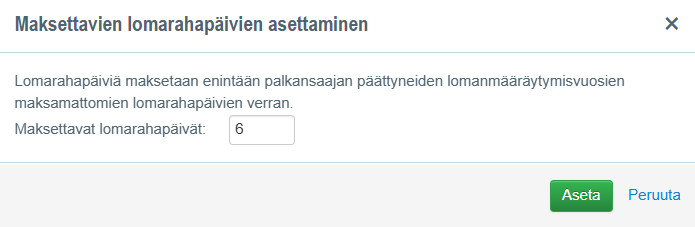
- Note that the program saves the given value for all employees if they have enough unpaid holiday bonus days left from completed holiday credit years. If there are fewer unpaid holiday bonus days than the given value, the number of remaining holiday bonus days is saved for the respective employee. Below is an example of a situation where 6 holiday bonus days have been saved for payment for everyone, but Kaisa Kettu only has 4 holiday bonus days left.

Frequently asked questions
How can I prevent the program from proposing holiday bonus payments with every payslip?
You can select the option "Do not propose paying holiday bonus days" in the salary model's Holiday settings. This speeds up the creation of payslips, as there is no need to manually reset the values.
What happens if I set more holiday bonus days in bulk than the employee has left?
The program will then save the maximum number of remaining holiday bonus days for the respective employee.
How are holiday bonuses paid centrally to all employees at once?
Use the "Check selected pay criteria" view's "Setting payable holidays" function, which allows you to enter payable holiday bonus days in bulk for all employees.
Keywords: holiday bonus, holiday settings, salary model, holiday bonus days, central payment, payroll, payable holidays, working hours entry
Did you find it helpful? Yes No
Send feedback