This guide covers the management of pay periods and payroll processes. The guide provides instructions on creating, editing, managing locks, and approval procedures for payroll. Additionally, the guide reviews the necessary user permissions to perform these functions.
CONTENT
- Add new salary model
- Filtering pay periods with view
- Approval of pay
- Payroll processes
- Locks, exiting pay period and release pay period lock
- Finalize process
- Active pay period
- Add new pay period
- Editing pay period dates
- Opening pay period
- Permissions
- Frequently asked questions
Payroll can be accessed from pay periods, which can be found in the menu under Pay > Payroll > Payslips and periods.

The page lists the pay periods for all salary models. The pay periods display the start and end dates of the pay period, any generated voucher, gross pay, payable amount, and the status of the pay period.
The Payslips and periods page has several functions, which are reviewed next.
Add new salary model
Go to the Salary models page from the button and copy a new salary model.
Filtering pay periods with view
Filter the pay periods you want to see. The following options are available:
- Up to the oldest open
- All open
- 3 previous and current
- By date
- All
By default, periods are shown up to the latest open.
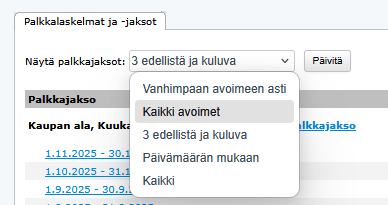
The display option chosen by the user (e.g., "All open") remains permanent, regardless of sessions and browser closures. The view does not revert to default settings or change unexpectedly when the user returns to the page.
Approval of pay
If the company uses pay approval, review the columns related to approval in the table. Check the column information to see if the calculations are still in approval or already approved, allowing you to proceed with the process.

Payroll processes
Proceed to the actual payroll process by drilling down from the salary model's pay period date link.
Locks, exiting pay period and release pay period lock
In Netvisor's payroll process, only one user (payroll accountant) can be on the same salary model's pay periods at a time. This prevents situations where multiple people edit payslips simultaneously. Identify a locked process by the lock icon in the Payslips and periods view:

Release the lock by exiting the payroll process with the button shown in the image below:

If you need to release another user's lock, you can do so by selecting Pay > Payroll > Payslips and periods > release pay period lock > release lock:

Finalize process
Change the pay period from open to handled.
Active pay period
Always open the latest active pay period. If you have a process open, the program will direct you to the open process, even if you try to open a pay period for a different salary model. Ensure no pay periods remain active by always exiting the payroll process with the "exit and release period lock" button:

Add new pay period
You can create a new pay period by selecting Pay > Payroll > Payslips and periods > Add new pay period.
Note that each salary model has its own link for creating a new period. Establish pay periods so that each day belongs to only one pay period and no empty days are left in between. If you pay for a period different from the usual, create the calculation for the actual pay period (if necessary, as an additional calculation). If needed, record a specification for the payslip about the different pay period. See the help for using additional calculations here.

You can manually create a new pay period, but it also forms automatically when you mark the latest pay period as finalized (status changes from open to handled) by clicking "finalize process".

Editing pay period dates
You can edit the pay period by selecting Pay > Payroll > Payslips and periods > Edit icon (pen/notepad).
With the edit function, you can change the start and end dates of the pay period. The icon is visible if the pay period is not locked by another person. Editing the pay period requires specific "Edit rights" in the Payroll function-specific rights.
The program prevents saving pay periods on overlapping days. If you want to create a so-called "broken pay period," first save the pay period suggested by the program and then edit the dates as desired.
Example
The default pay period is a month, but you want to exceptionally establish a pay period for 01.07.2022-15.07.2022. The latest pay period is from June. The program offers the next open period, i.e., July 01.07.2022-31.07.2022.
- Select Add new pay period

- Save the automatically offered full pay period (01.07.2022-31.07.2022).

- Select Edit (pen/notepad) icon.
- Edit the end date of the pay period to 15.07.2022 and save.

- The dates are saved and visible on the Payslips and periods page.

Opening pay period
You can open a pay period marked as handled if additional pay needs to be calculated for the period. For an open pay period, you can create additional calculations and new payslips.
Always mark the pay period as open if there is a need to edit the payslips of the pay period.
Mark the pay period as open when there are no incomplete payslips in the process.
Handle the pay period by selecting in the payroll process Mark pay period as handled.

Check the status change: after handling, the status of the pay period is "handled".

Return the handled period to open by selecting in the payroll process Mark pay period as open.

Start payroll normally when the pay period is open. Employees become selectable for calculation. Select Check selected pay criteria.

Permissions
Ensure you have the Payroll accountant (P) role to access pay periods and related functions.

You need "edit rights" in the payroll function-specific rights for "Salary models, types, and holiday calculation methods". With read rights, you can see the page information but cannot make changes.

Additionally, you need "edit rights" for "Payroll" to manage open processes, pay period length, and drill down into pay periods. Profiles with the necessary rights are "All rights" and "Company management".

Frequently asked questions
Why can't I see the edit icon next to the pay period?
The pay period may be locked by another user, or you do not have sufficient edit rights for payroll.
How can I add pay to an already handled period?
You need to mark the pay period as open again in the payroll process. After this, you can create additional calculations.
Can there be breaks in pay periods?
No, each day must belong to only one pay period without empty ranges. If you pay for a period different from the usual, use the actual pay period and record the deviation in the specification.
Keywords: Payroll, Pay period, Salary model, Lock, Permissions, Approval
Did you find it helpful? Yes No
Send feedback