This guide covers the implementation of Netvisor's payroll, working hours entries, travel and expense reports, and the eScan receipt scanner. The implementation defines all the necessary background information required for calculations.
Instructional videos have been created for the implementation of payroll, and the videos can be found here.
CONTENT
- Implementation from the store
- Implementation steps
- Payroll implementation steps
- Working hours
- Holiday calculation
- Travel service implementation steps
- Frequently asked questions
Implementation from the store
Activate the Payroll and/or Travel service from the Store icon in the upper right corner of Netvisor. Only the administrator, user administrator role holder, or the accounting office administrator can do this.
Note that if you switch to a service package, you can no longer return to the previous agreement. New agreements are always opened in a service package.

- If your company uses one of Netvisor's service packages (Basic, Core, Professional, Premium), "Payroll and working hours entry" and "Travel and expense reports" are additional services.
- You can find additional services by scrolling down the Store view to "Additional services".
- Activate the necessary additional services with the "Enable" button. This does not yet form a billing basis.

You can also activate the Netvisor Pay package. This package is suitable if your company uses Netvisor only for payroll calculation, working hours entry, and travel and expense report processing without the need for accounting. Activating this package will disable the previous service package and activate the billing basis.

Implementation steps
Once you have activated the desired services from the store, proceed to the implementation. You need the Payroll accountant role (P) and editing rights to all payroll and financial management function-specific rights.
You can open the view by selecting Pay > Settings > Implement, enable, activate, start using.
- Select which service implementation you want to perform.
- Click "Start implementation of selected services".

Pay implementation is divided into sections: payroll, working hours, and holiday calculation. Perform the steps one by one, mark them as done, and finally click "Start using".
Travel implementation is divided into sections: personnel and travel. Perform the steps one by one, mark them as done, and finally click "Start using".
Payroll implementation steps
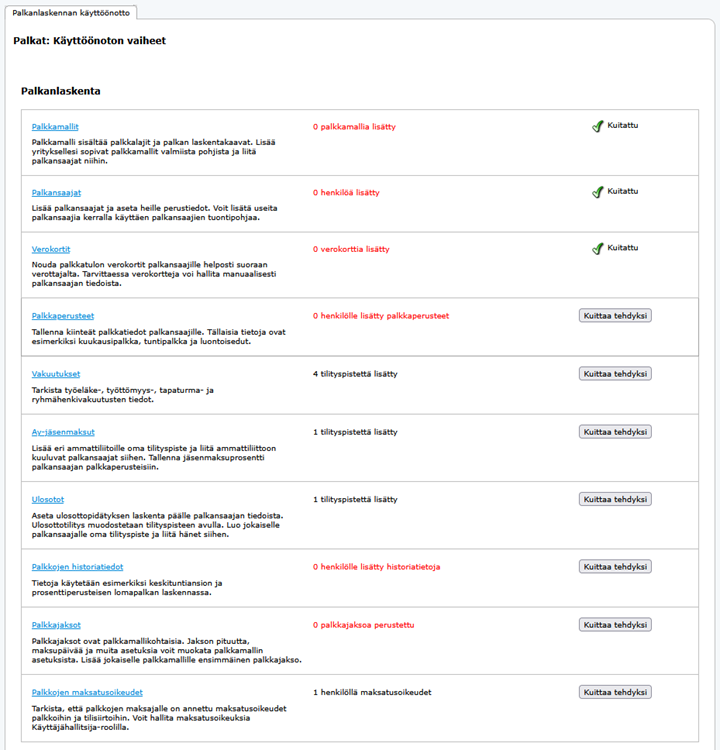
1. Salary models
A salary model includes salary types that guide payroll. You can open the view by selecting Pay > Payroll > Salary model management.
- Add a salary model by copying a ready-made Netvisor salary model template. If you manage multiple companies, you can also copy a salary model already in use in another company.
- Refer to the instructions on Salary model settings.
- Once you have added the salary models, return to the implementation steps and mark the section as done.
2. Employees
You can add employees by selecting Pay > Personnel > New employee
- Add persons to payroll.
- Refer to the instructions on creating an employee and basic data.
- You can also import employee data in bulk. Read more about bulk import of employees.
- Once you have added the employees, return to the implementation steps and mark the section as done.
3. Tax cards
You can add tax cards by selecting Pay > Personnel > Employee listing > Tax cards.
- Add tax cards to employees either manually or retrieve them directly from the tax authority.
- Refer to the instructions on Tax cards.
- Once you have added the tax cards, return to the implementation steps and mark the section as done.
4. Pay criteria
You can add pay criteria by selecting Pay > Personnel > Pay criteria management.
- Add fixed pay criteria for individuals to the table.
- Refer to the instructions on Pay criteria.
- If the pay criteria page is empty, ensure that you have added a salary model with the necessary salary types in step 1.
- Once you have added the pay criteria, return to the implementation steps and mark the section as done.
5. Insurances
You can manage insurances, trade union dues, and distraints by selecting Pay > Payroll > Settlements > Go to settlement point settings
- Check the information on pension, unemployment, accident, and group life insurances.
- Check the settlement point allocation percentages.
- If you want to make the settlement through Netvisor, add a bank account and reference number to the settlement point and mark the section "Is the settlement paid" > "To be paid".
- Refer to the instructions on Settlement points.
- Once you have checked the information, return to the implementation steps and mark the section as done.
6. Trade union dues
You can add persons to settlement points by selecting Pay > Payroll > Settlements > Go to settlement point settings > Select from the settlement > Edit > Employees linked to the settlement point
- Create a separate settlement point for each trade union.
- Add persons to the necessary settlement points.
- Refer to the example on forming settlements.
- Once you have added persons to the settlement points, return to the implementation steps and mark the section as done.
7. Distraints
You can manage distraints by selecting Pay > Payroll > Settlements > Go to settlement point settings
- Create a separate Distraint settlement point for each employee under distraint processing.
- Refer to the instructions on Distraint from pay.
8. Salary history information
You can add historical data by selecting Pay > Settings > Payroll settings > Salary history information.
- Enter previous salary accumulations into historical data. Save the information in monthly detail.
- Refer to the instructions on Historical data.
- You can also import historical data in bulk.
- Once you have added the historical data, return to the implementation steps and mark the section as done.
9. Pay periods
You can manage pay periods by selecting Pay > Payroll > Payslips and pay periods
- Open the first pay period for each salary model.
- Define the default length of the pay period and the default due date in the Salary model basic data.
- Refer to the instructions on Pay periods and Salary model settings.
- Once you have opened the pay periods, return to the implementation steps and mark the section as done.
10. Verification of payment rights
You can verify user rights by selecting Company > Users and user rights > Users and roles
- Check that users have payment rights for salaries. You need KH role/user administrator rights to add rights.
- Also check Payroll profiles and roles.
- Grant accounts payable rights "Purchase invoice payer" and "Bank transfer payer" rights.
- Refer to the instructions on Payment rights.
- Once you have verified the payment rights, return to the implementation steps and mark the section as done.
Working hours
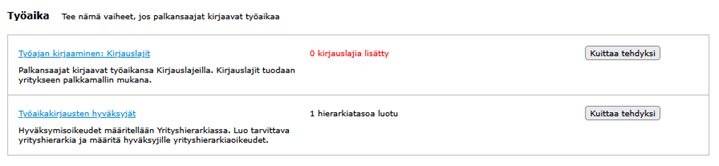
1. Working hours entry: Record types
Record types come with the salary model. You can view them by selecting Pay > Settings > Payroll settings > Record types
- Check the record types and salary model-specific formulas.
- Refer to the record types instructions.
2. Approvers of working hours entries
You can define approval rights by selecting Company menu > Users and user rights > Company hierarchy.
- Define approval rights in the company hierarchy.
- Also check function-specific rights and roles of approvers.
Holiday calculation
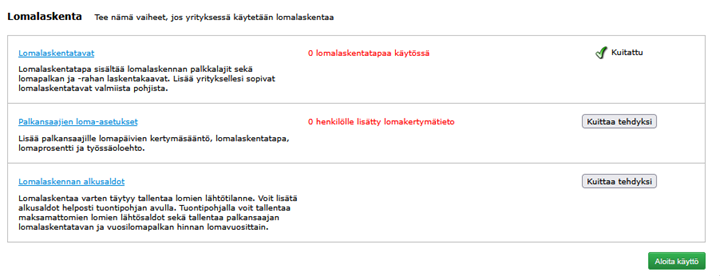
1. Holiday calculation methods
Holiday calculation methods determine the payable and accrued holiday pay and holiday bonus. You can add them by selecting Pay > Settings > Holiday calculation settings > Holiday calculation methods.
- Add holiday calculation methods by copying a ready-made holiday calculation method template.
- Refer to the instructions on Holiday calculation methods.
- Once you have added the holiday calculation methods, return to the implementation steps and mark the section as done.
In companies established after 31.3.2017, the renewed holiday calculation is automatically enabled. In older companies, there are separate steps for implementing the new holiday calculation.
2. Employees' holiday settings
You can provide the basis for the accumulation of annual leave days by selecting Pay > Settings > Holiday calculation settings > Holiday entitlement management.
- Define the basis for the accumulation of annual leave days according to the Annual Holidays Act or collective agreement.
- Provide accumulation rules either as the number of leave days or percentage values.
- Refer to the instructions on Holiday entitlement management.
- Once you have added the holiday accumulation information, return to the implementation steps and mark the section as done.
3. Opening balances for holiday calculation
You can enter opening balances by selecting Pay > Holiday management > Holiday pay debt
- Save unpaid and unclaimed holiday balances in the opening balances for holiday calculation.
- Refer to the instructions on Opening balances for holiday calculation.
- Add opening balances easily using the import template.
- Once you have added the opening balances, return to the implementation steps and mark the section as done.
The implementation is complete when you have marked all steps as done and pressed the Start using button. If you initially selected the implementation of both sections, the function will guide you to the steps of the next service section.
Travel service implementation steps
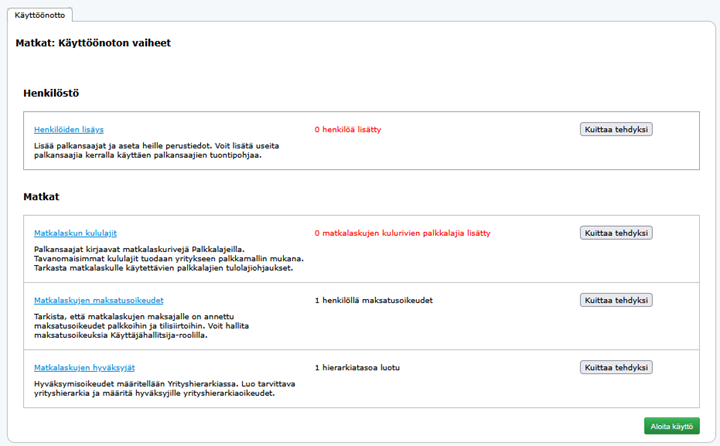
Personnel
1. Adding persons
You can add persons by selecting Pay > Personnel > New employee.
- Add persons to payroll.
- Refer to the instructions on creating an employee and basic data.
- You can also import employee data in bulk. Read more about bulk import of employees.
- Once you have added the employees, return to the implementation steps and mark the section as done.
Travel
1. Cost types for travel expense reports
You can view cost types by selecting Pay > Payroll > Salary model management > select from the salary model > Formulas > Salary type formulas tab > Tax-exempt allowances for expenses
- Check the salary types for travel expense report cost rows and travel expense accountings.
- Add new cost type salary types if necessary.
- Once you have checked the cost types, return to the implementation steps and mark the section as done.
2. Payment rights for travel expense reports
You can verify user rights by selecting Company > Users and roles
- Check that users have payment rights for salaries. You need KH role/user administrator rights to add rights.
- Also check Payroll profiles and roles.
- Grant accounts payable rights "Purchase invoice payer" and "Bank transfer payer" rights.
- Refer to the instructions on Payment rights.
- Once you have verified the payment rights, return to the implementation steps and mark the section as done.
3. Creation of company hierarchy and verification of hierarchy rights
You can create a company hierarchy by selecting Company > Users and roles > Company hierarchy.
- Create a company hierarchy and add hierarchy rights to users. The company hierarchy restricts individuals' rights to view information in the Travel service.
- Refer to the instructions on Company hierarchies.
- Also check the user's function-specific rights for factual verification or approval of travel expense reports.
- Once you have created the company hierarchy, return to the implementation steps and mark the section as done.
The implementation is complete when you have marked all steps as done and pressed the Start using button.
Frequently asked questions
How do I implement Netvisor's payroll?
First activate the service in the Netvisor Store and then perform the guided implementation from the menu Pay > Settings > Implement, enable, activate, start using.
Where do I add a new employee?
You can add new employees, enter their basic data, and also import data in bulk from the menu Pay > Personnel > New employee
How are tax cards added to Netvisor?
You can add tax cards manually or retrieve them directly from the tax authority through employee management.
How do I manage trade union dues and distraints?
Trade union dues and distraints are managed by creating separate settlement points for them in the menu Pay > Payroll > Settlements.
Where are the rules for holiday calculation defined?
Holiday calculation methods, accumulation rules, and opening balances are defined in the implementation Holiday calculation settings.
Keywords
payroll, implement, enable, activate, start using, salary model, employee, tax card, settlement point, trade union dues, distraint, history information, pay period, working hours, holiday calculation, travel expense report, company hierarchy.
Did you find it helpful? Yes No
Send feedback